At a glance
JumpCloud’s Admin Portal only worked on a desktop. So when someone got locked out of their account, the person who could fix it had to find a laptop first. Customers kept asking for an app, and competitors already had one.
I took JumpCloud’s first native app from a handful of inherited concepts to the App Store: login, alerts, search and one-tap unlocks, in light and dark mode on iOS and Android.
- My role
- Lead designer on the mobile app, from early concepts to release builds
- Team
- A PM and one React Native team building for iOS and Android, plus another designer early on
- Timeline
- About 9 months
The old way: Locked out? Find a laptop.
JumpCloud gives IT teams one place to manage their company’s users, devices and access. But the Admin Portal only worked on a desktop.
The tasks admins dealt with most, day to day, were people locked out of their accounts and passwords that had expired. Both stop someone from working, so they need fixing fast. And admins aren’t always at their desks when it happens.
The brief: Put the urgent stuff in their pocket.
Customers were asking for a mobile app, and our competitors already had one. The brief was JumpCloud’s first native app: not the whole Admin Portal on a phone, just the most common urgent tasks, done well.
Another designer started the project and sketched the first concepts, then left partway through. I picked it up from there and finished it as the only designer, working with a PM and one engineering team. The app was built in React Native, so the same team shipped iOS and Android, and everything sat on Stratus, the JumpCloud design system I also helped build.
The work: What I designed and why
Four tabs to start
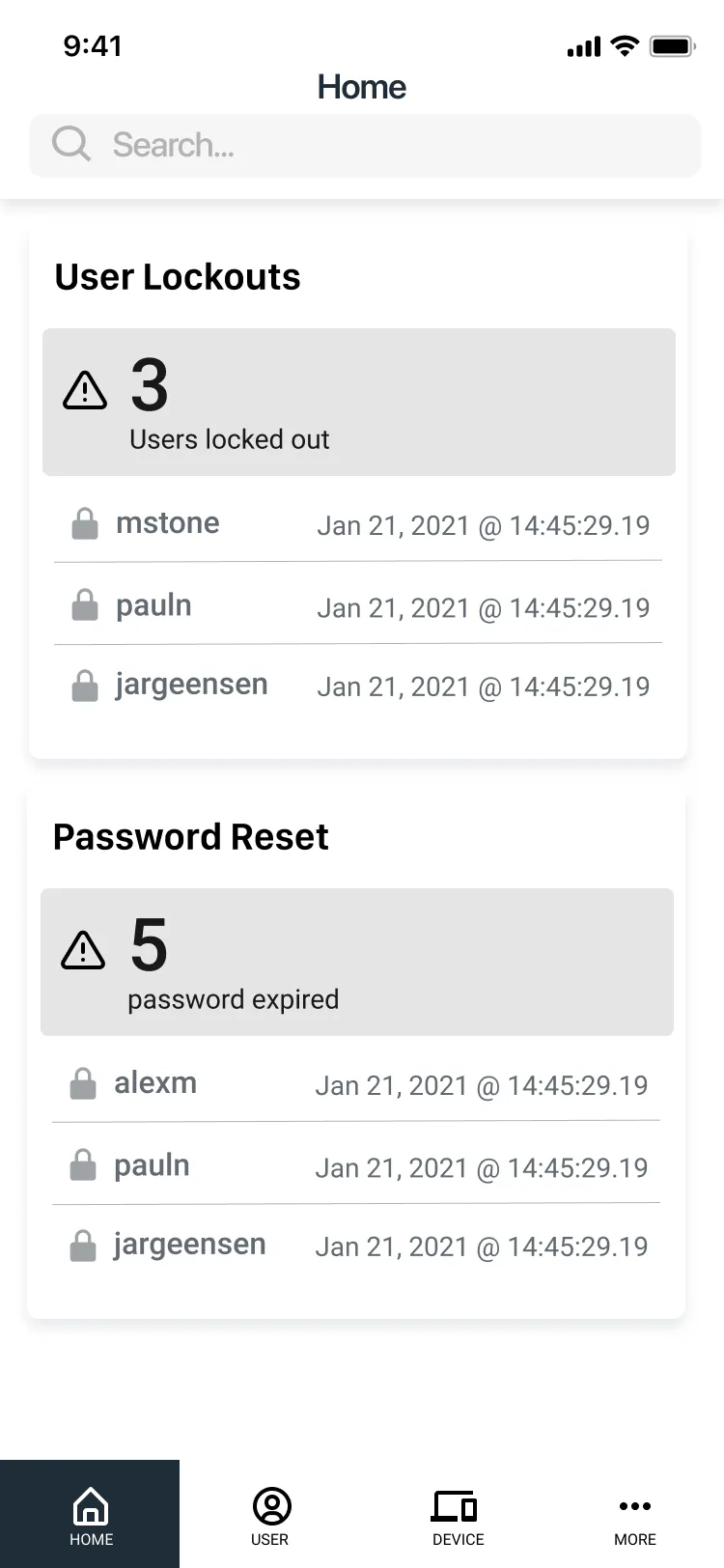
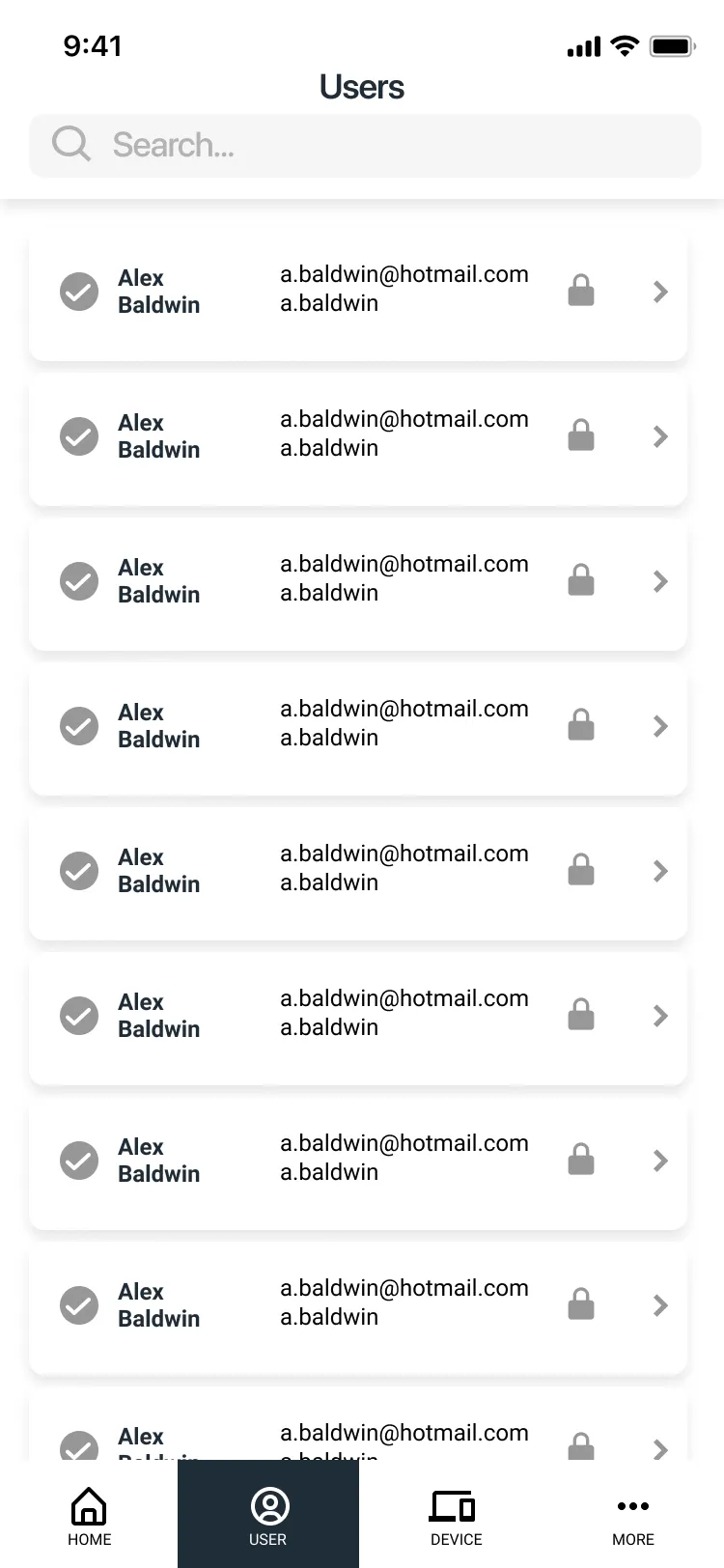
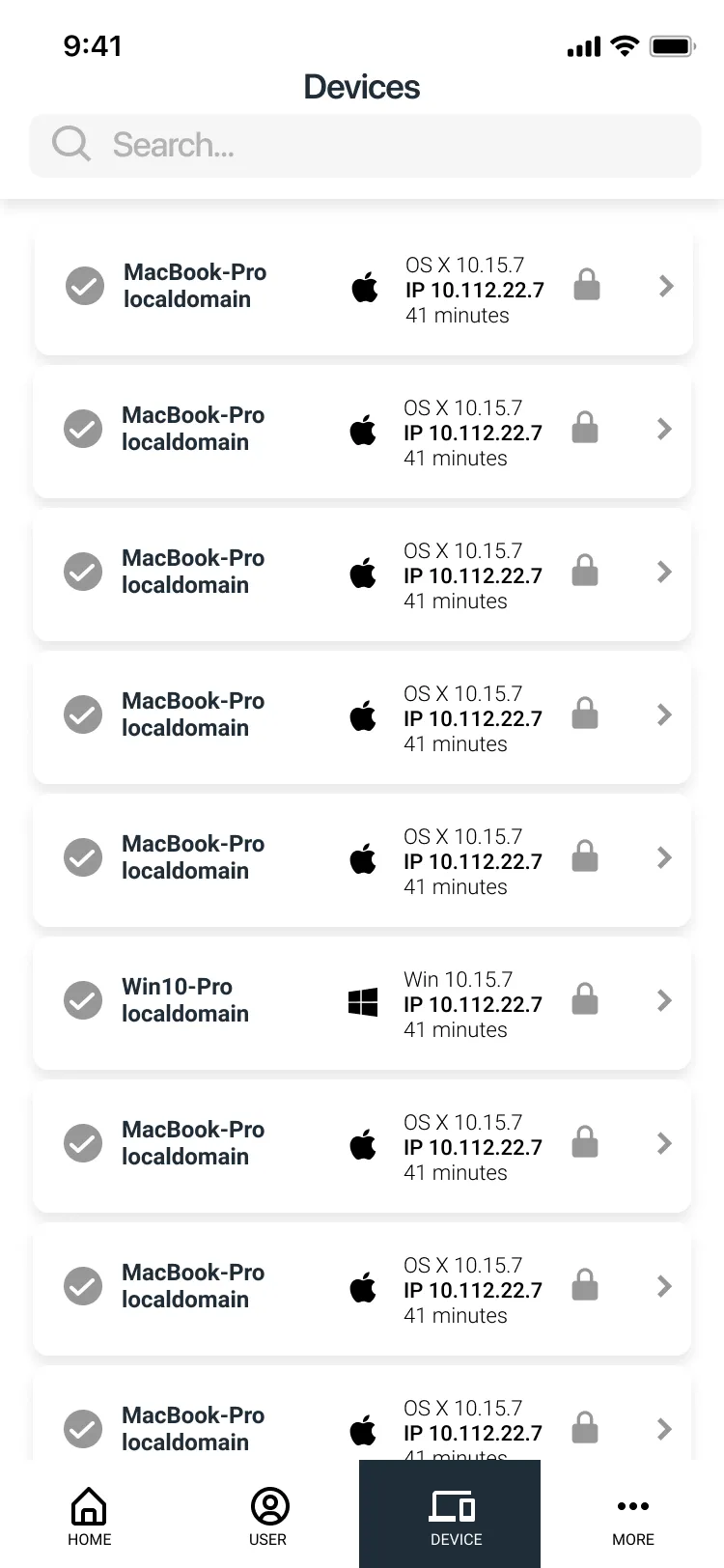
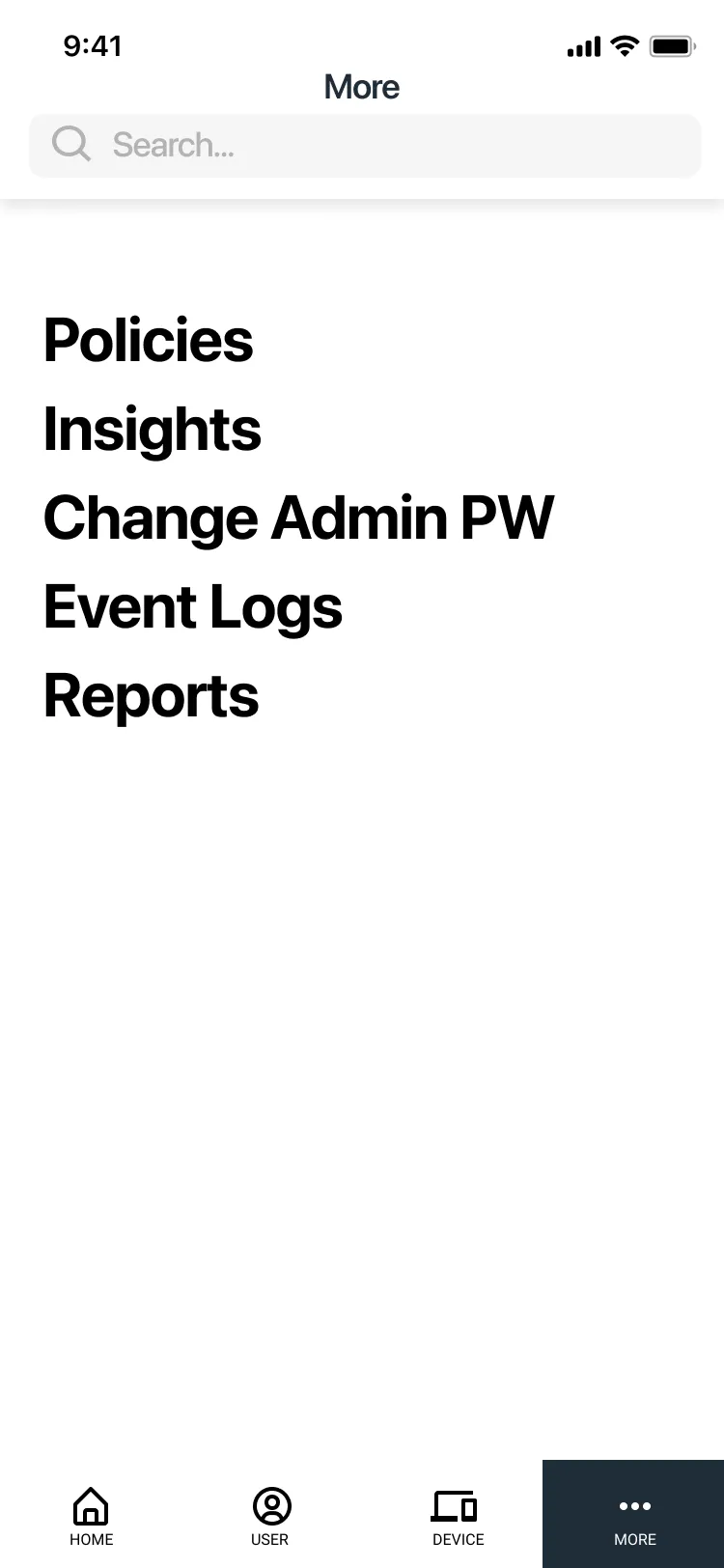
The concepts I inherited split the app into four tabs: Home, Users, Devices and More. Home already led with lockouts and expired passwords. Devices could remotely lock, restart, shut down or erase a computer. More was a catch-all for policies, insights, event logs and reports.
That’s a lot of portal for a phone. Before going further, we needed to know which parts admins would actually reach for.
Testing it on wireframes first
Early on, I ran usability tests with admins on a clickable prototype of the first wireframes. Each session started the same way: you’ve just got an alert that someone is locked out. Then came four tasks, one for each tab.
The tasks
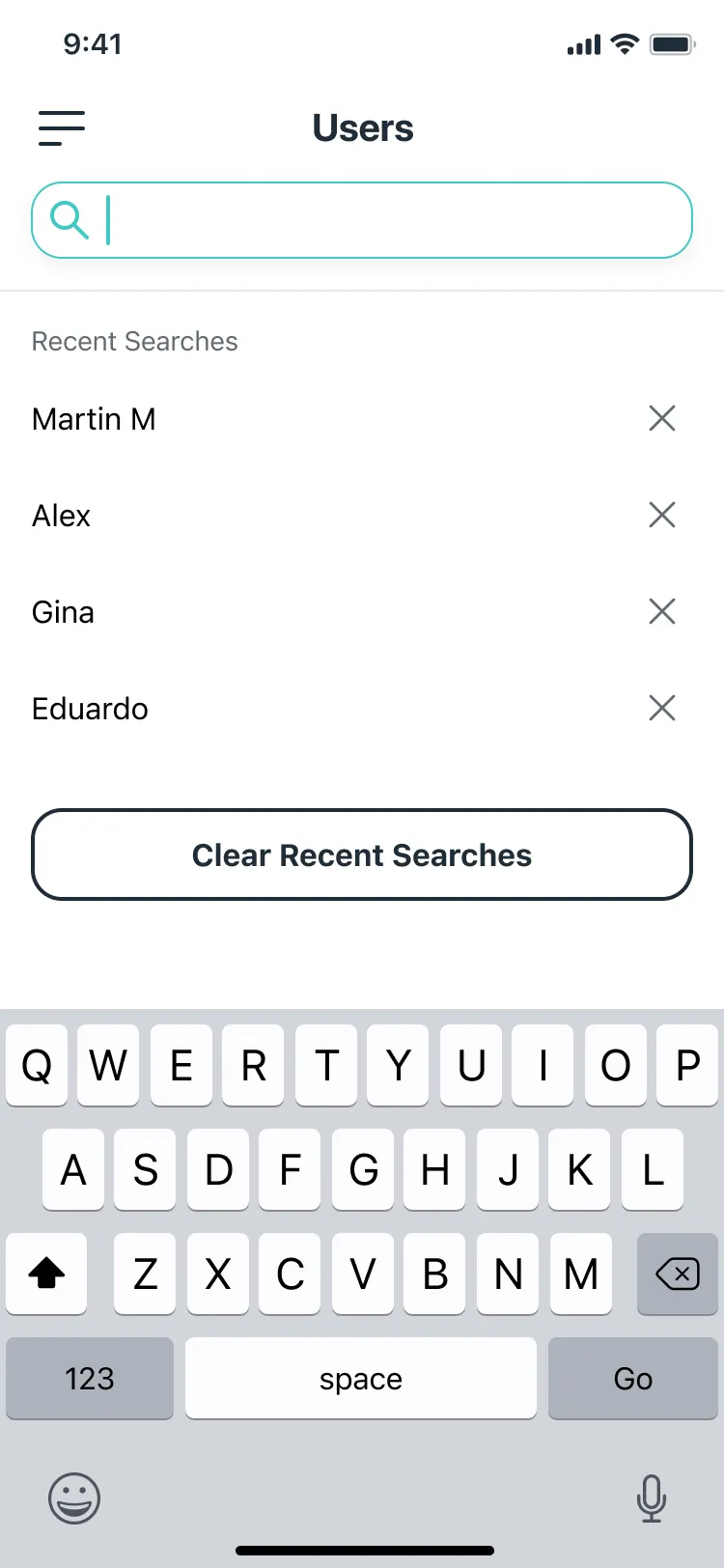
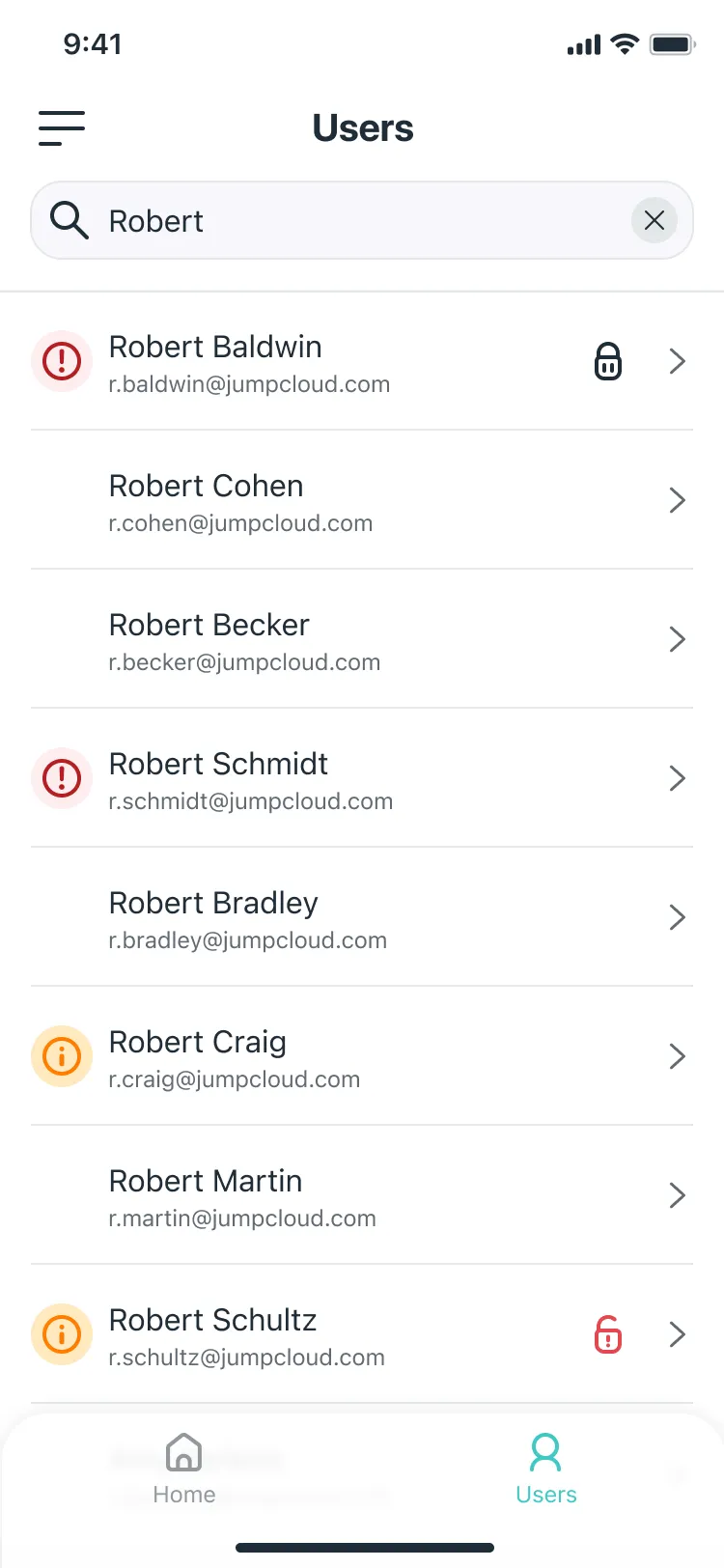
- One search box for everything. Admins wanted to look people up by whatever they had on hand, whether that was a name, an ID, an email or an employee type, all from the same box.What it led to: A single search for first name, last name and email in the first release, with recent searches saved.
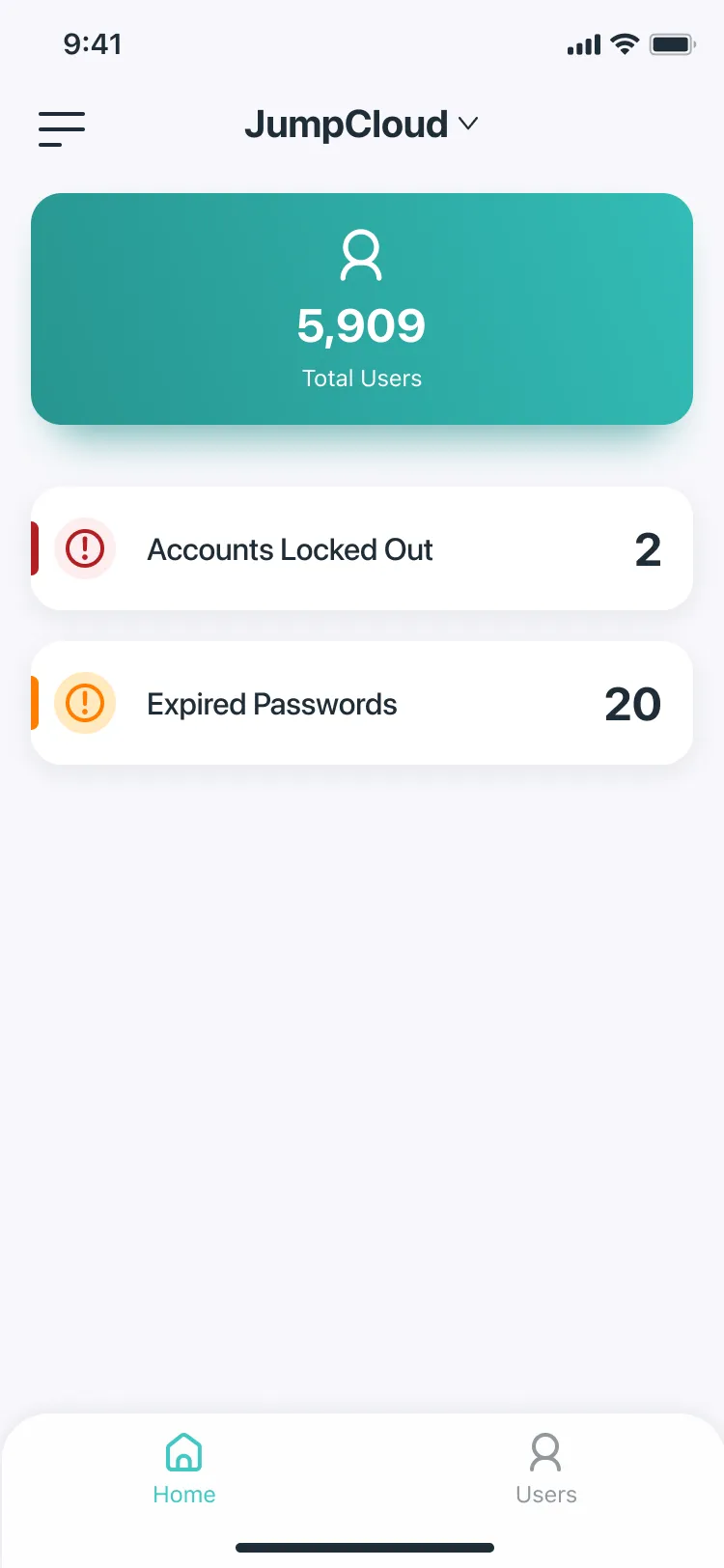
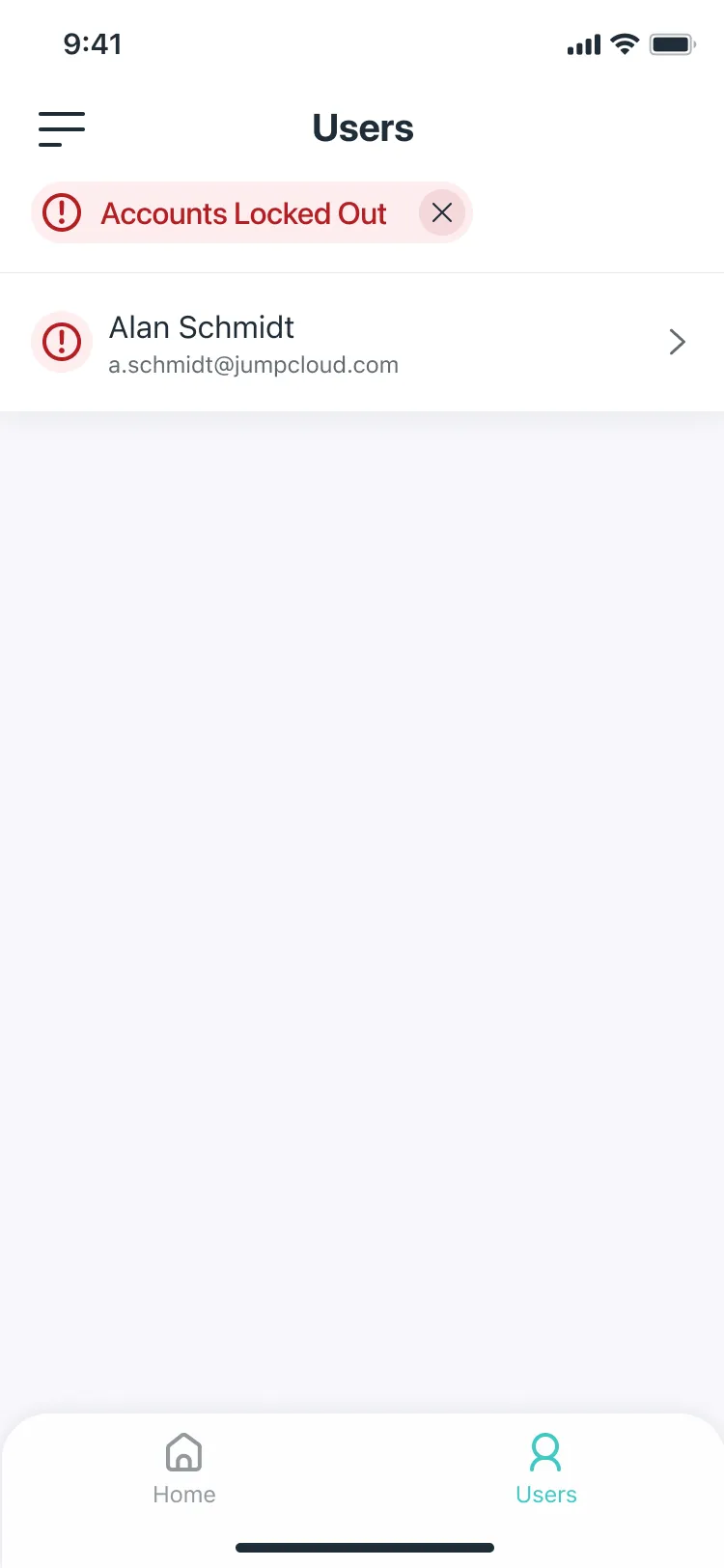
- Quick filters, please. They wanted to cut the list down to the people who needed help right now, without typing anything.What it led to: Filters for locked-out accounts and expired passwords, one tap from Home.
Finding the look
The visual explorations went wide: abstract cloud shapes for the login screen, a sea green palette alongside JumpCloud’s rainbow brand colors and plenty of footer experiments. The data viz dashboards tried putting a trend line on every problem, from bold blocks of color to a single monthly report.
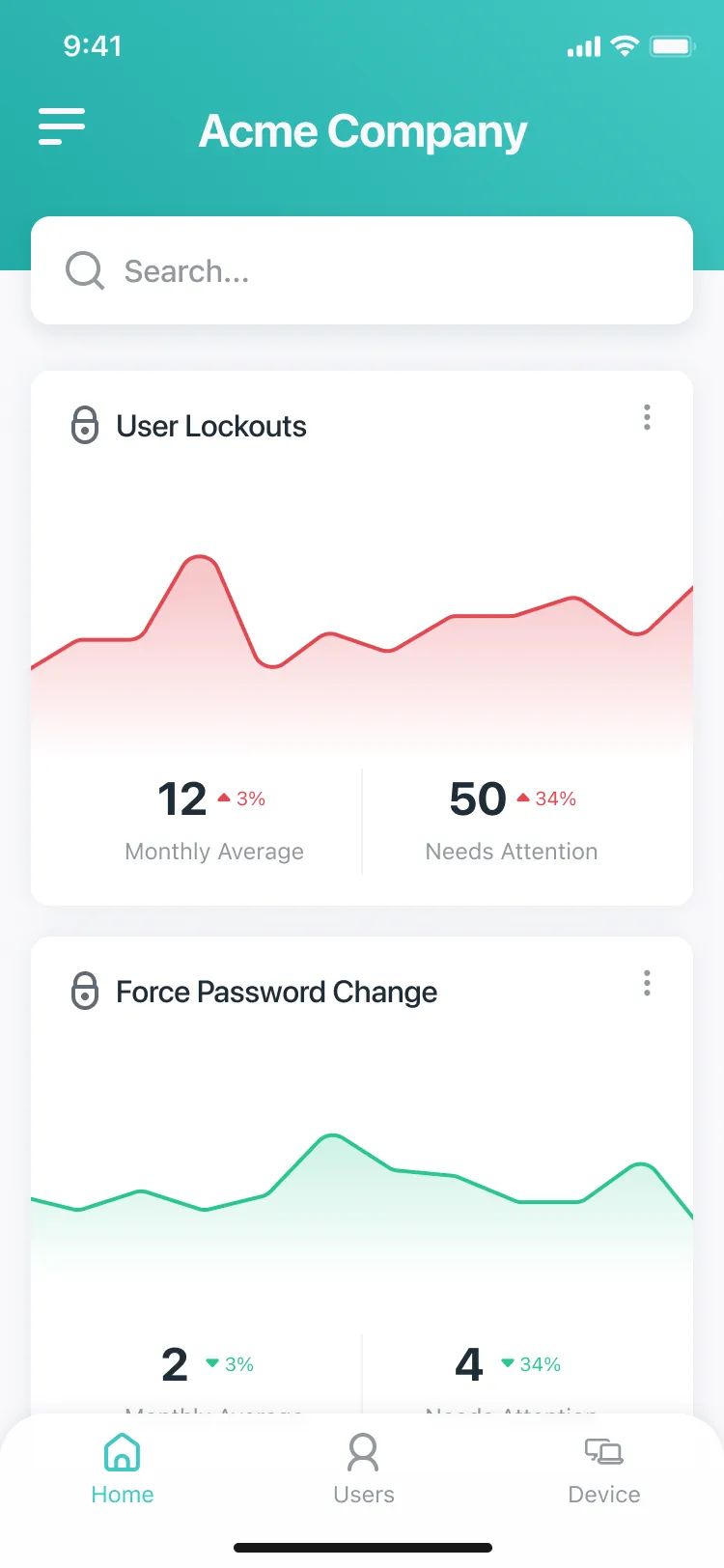
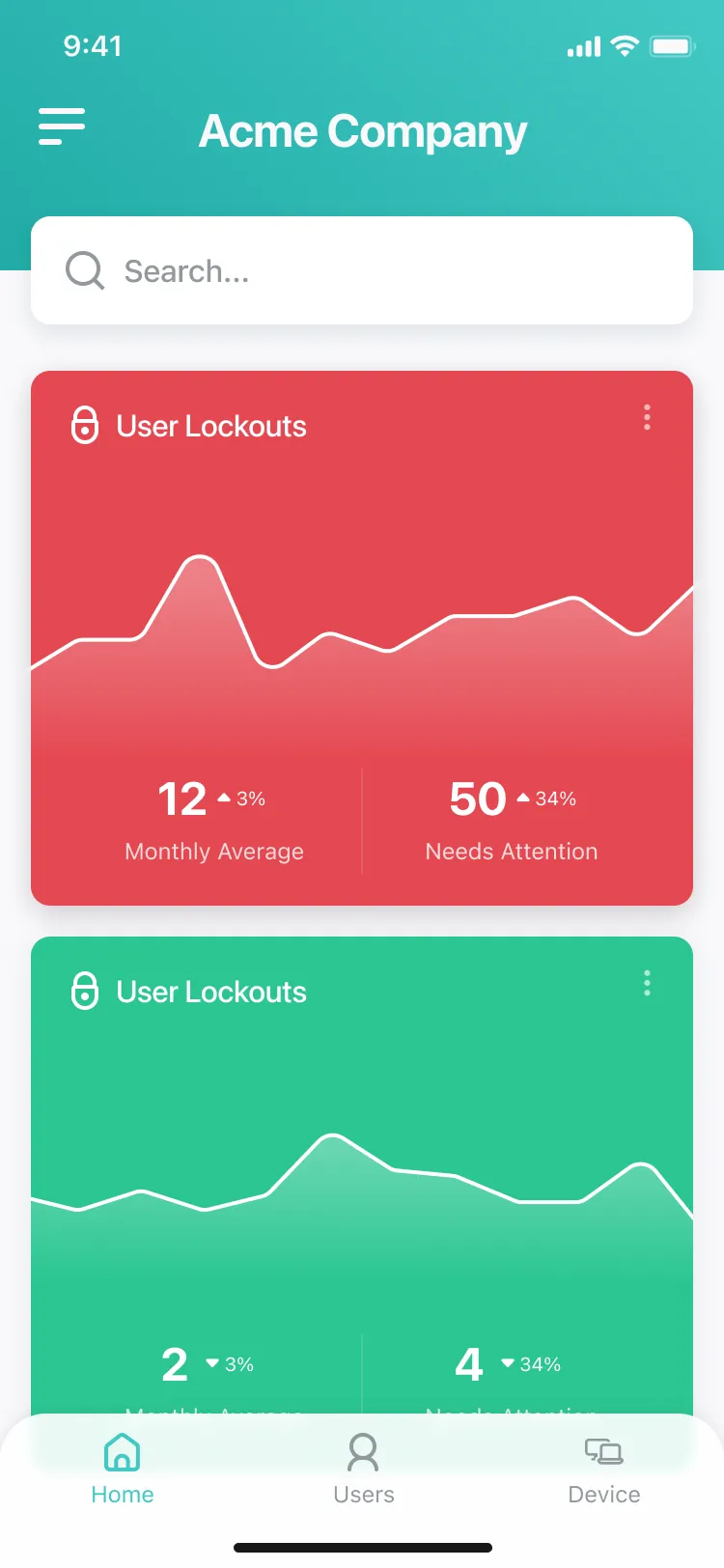
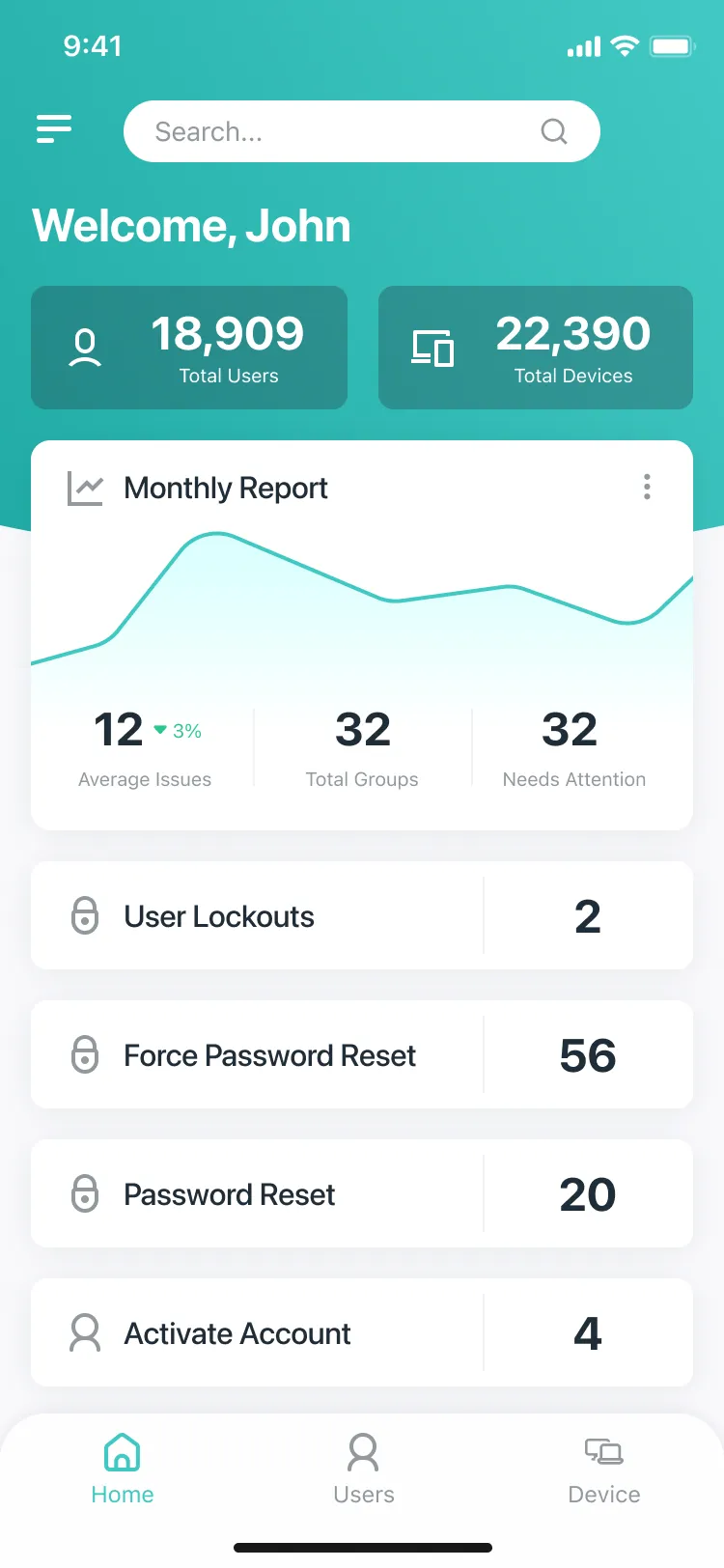
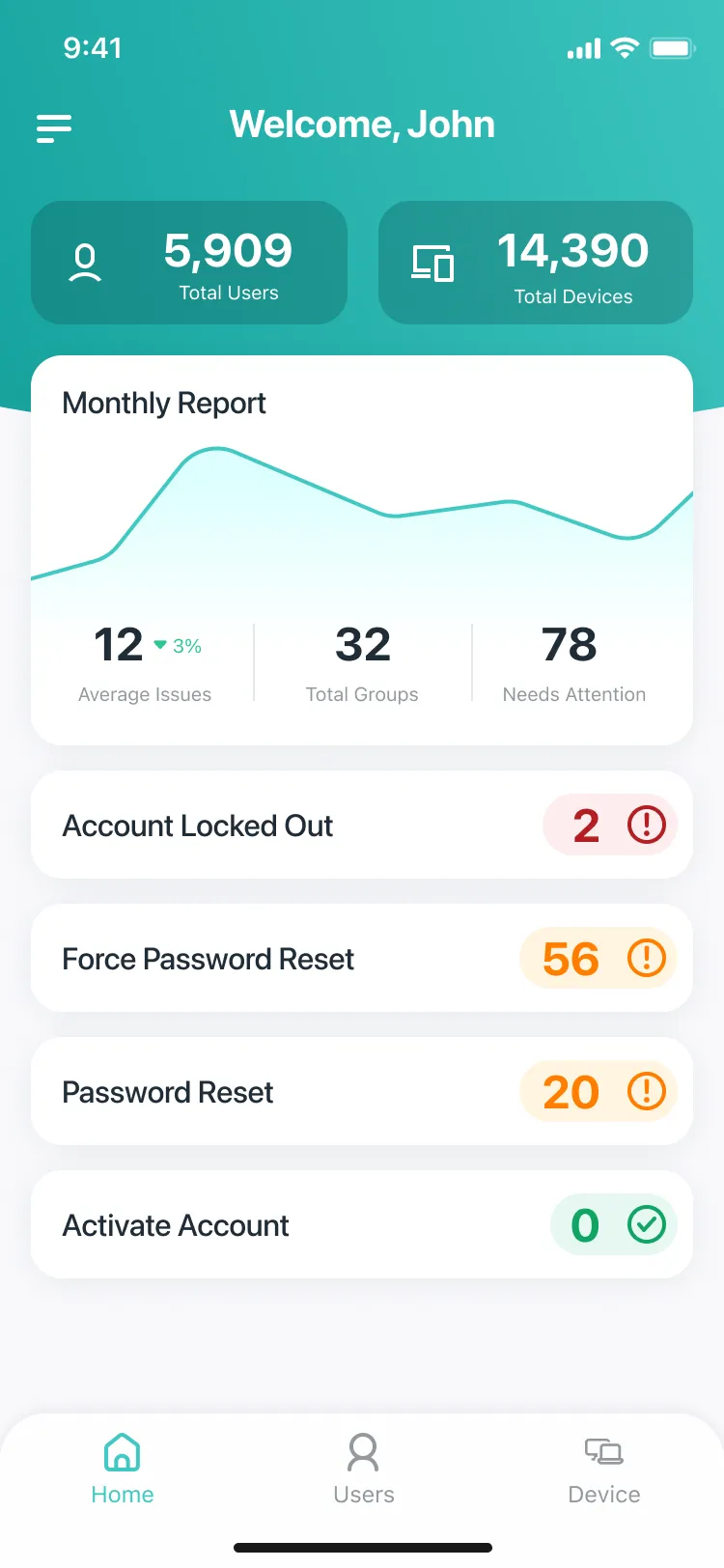
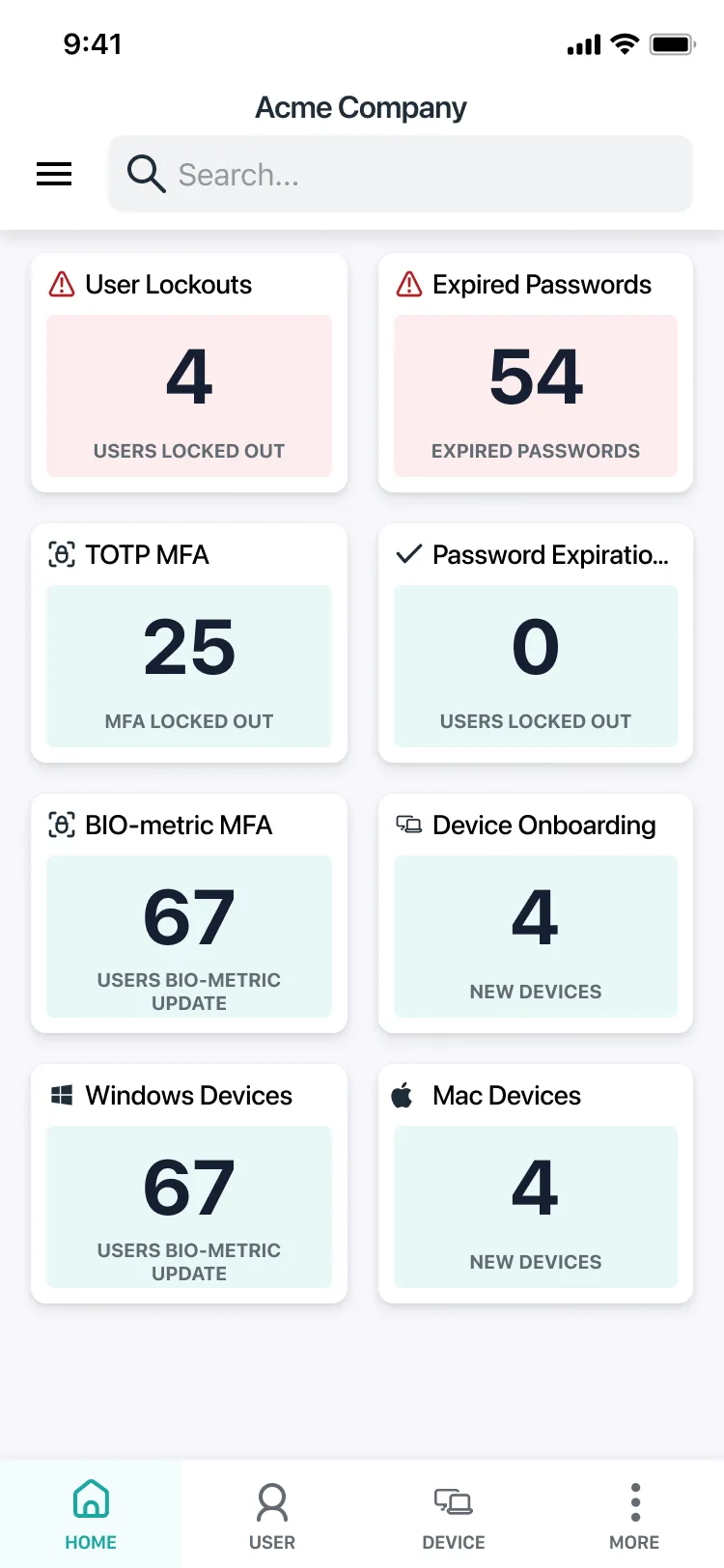
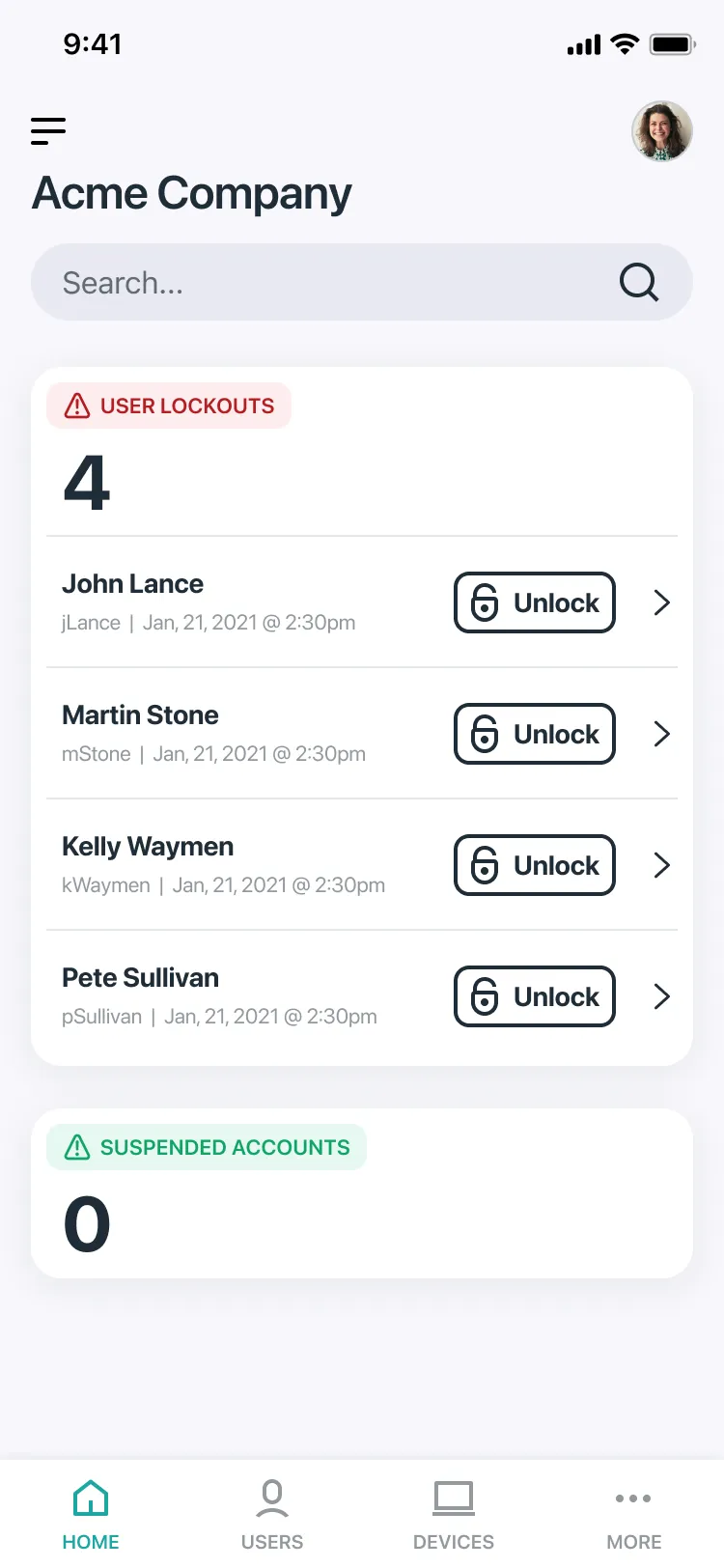
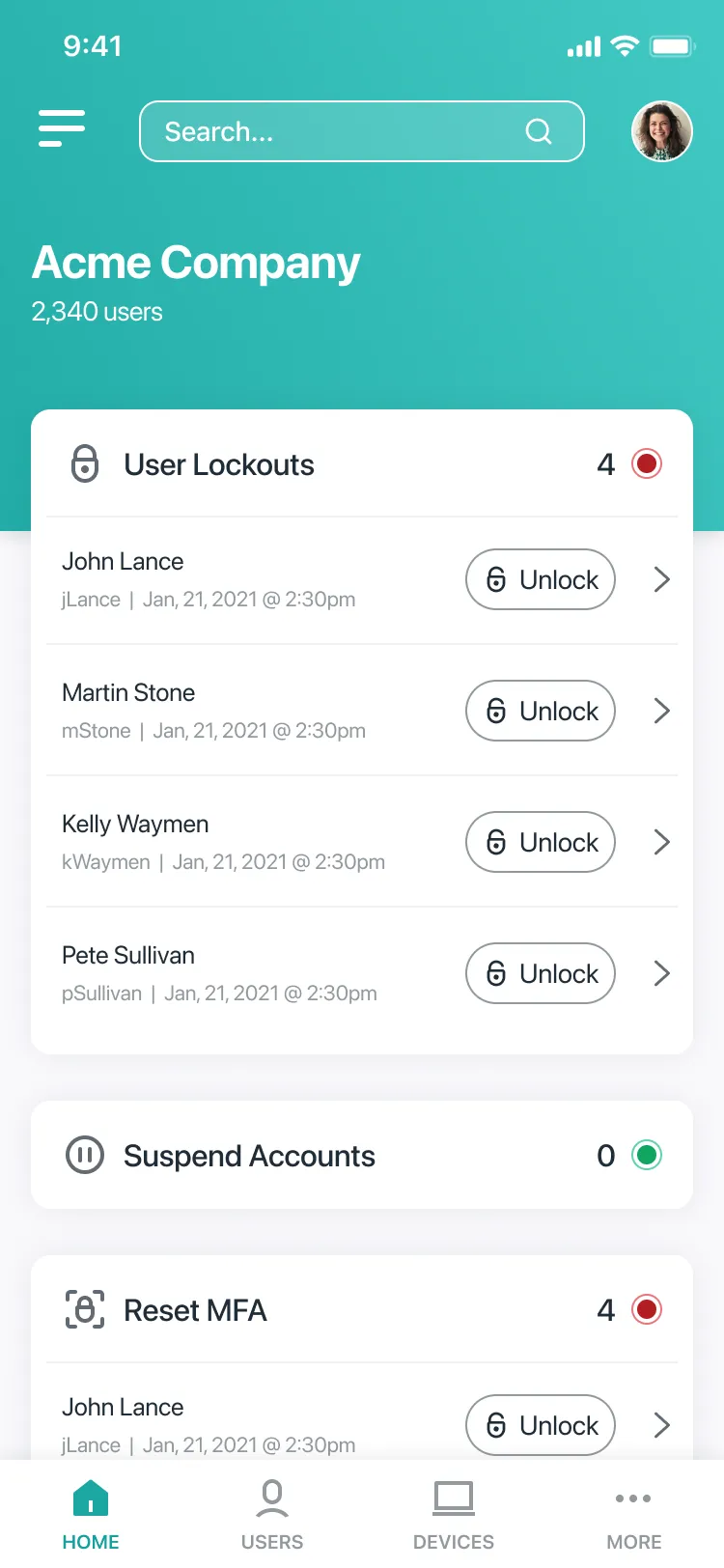
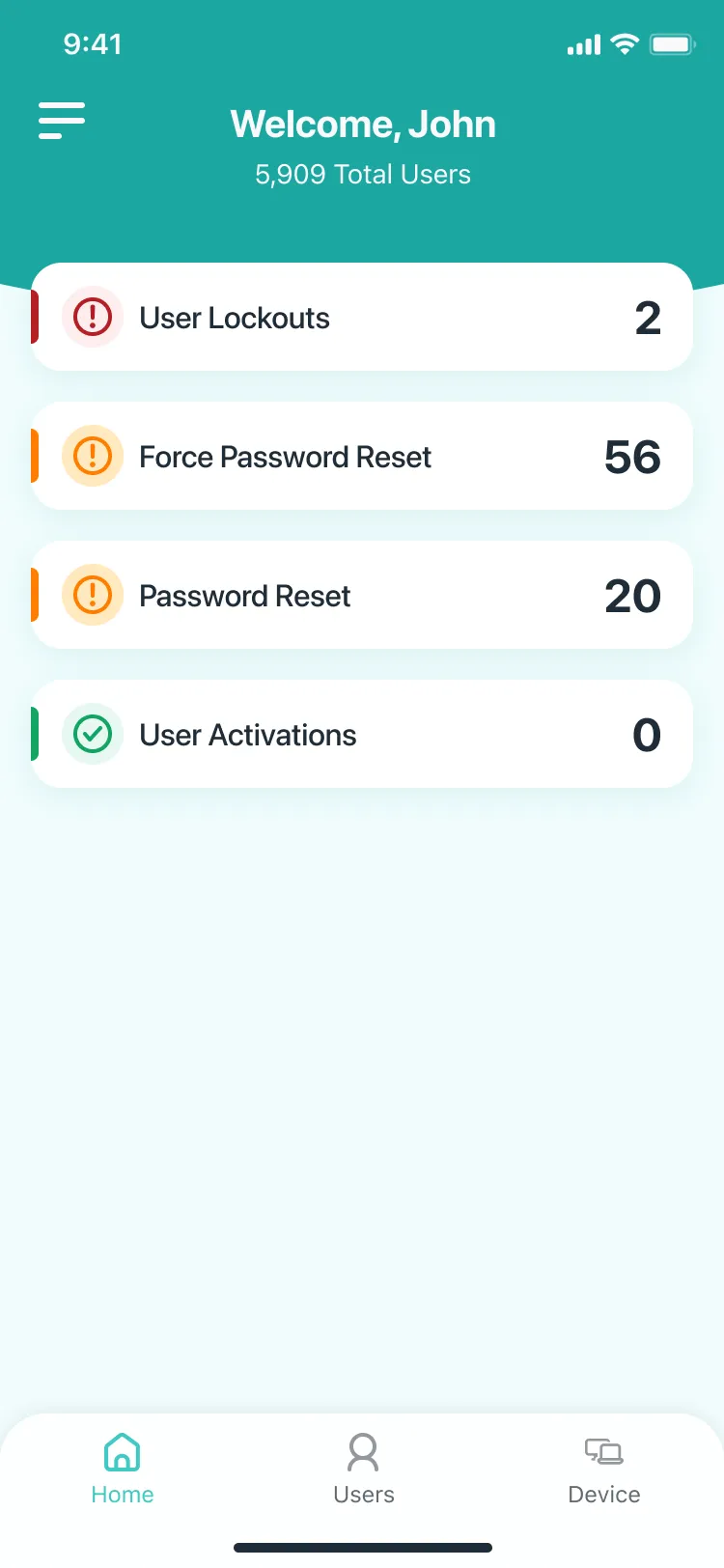
You can follow where it went from there on the home screen. The first high fidelity pass put a grid of counts on Home, from lockouts and expired passwords to MFA and new devices. The next version narrowed it to lockouts, with an Unlock button for each person right on Home. v3 moved the company name and user count into a teal header and added more urgent tasks below. v4 stripped it back to a short list of counts under a welcome, close to where the MVP ended up. The style that won was designed in light and dark mode from the start.
Dark mode made it all the way to the App Store, and it works well.
Logging in to a security company’s app
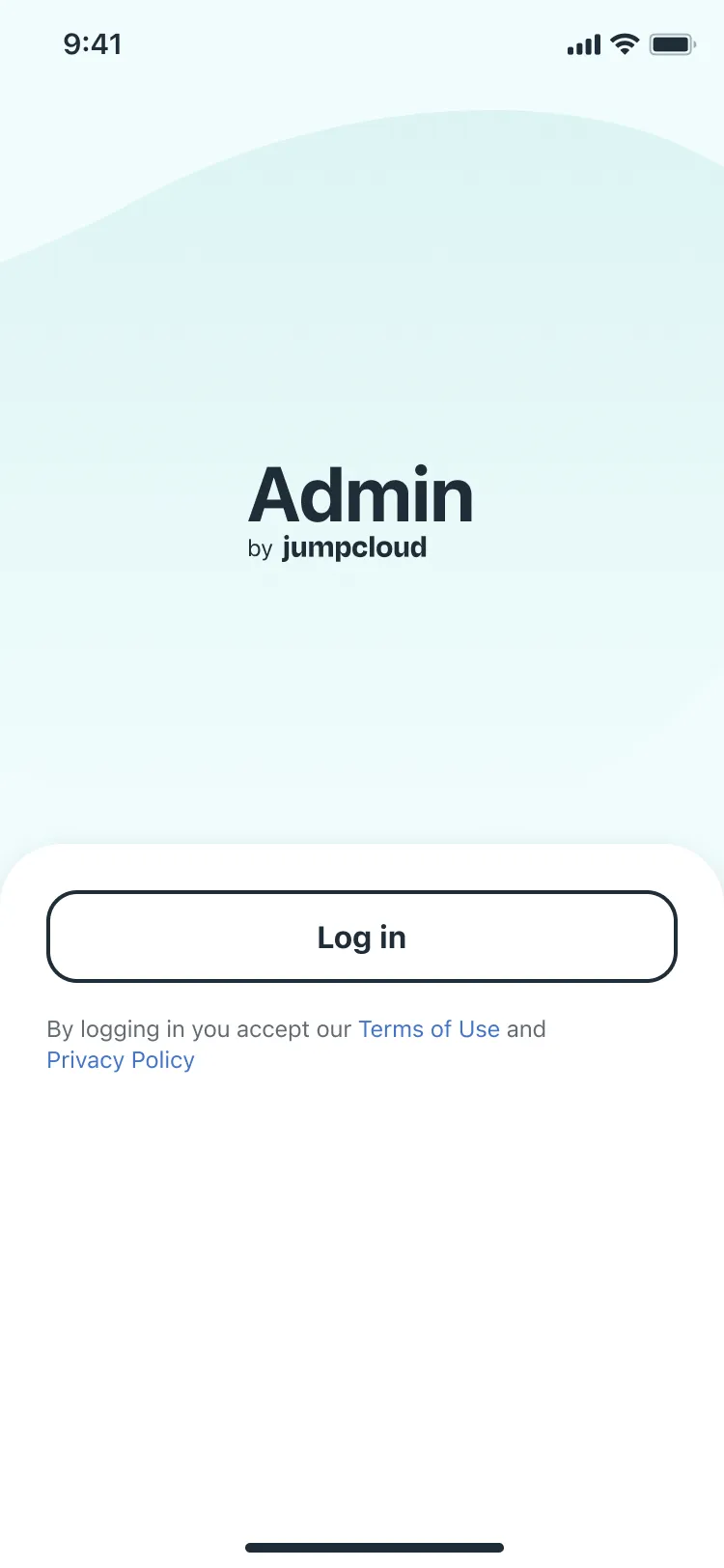
This app is for the people who hold the keys to the whole company, so logging in had to be airtight without becoming a chore. That meant a separate flow for every way an admin might sign in: with JumpCloud or Google, with or without multi-factor authentication, on iOS and Android.
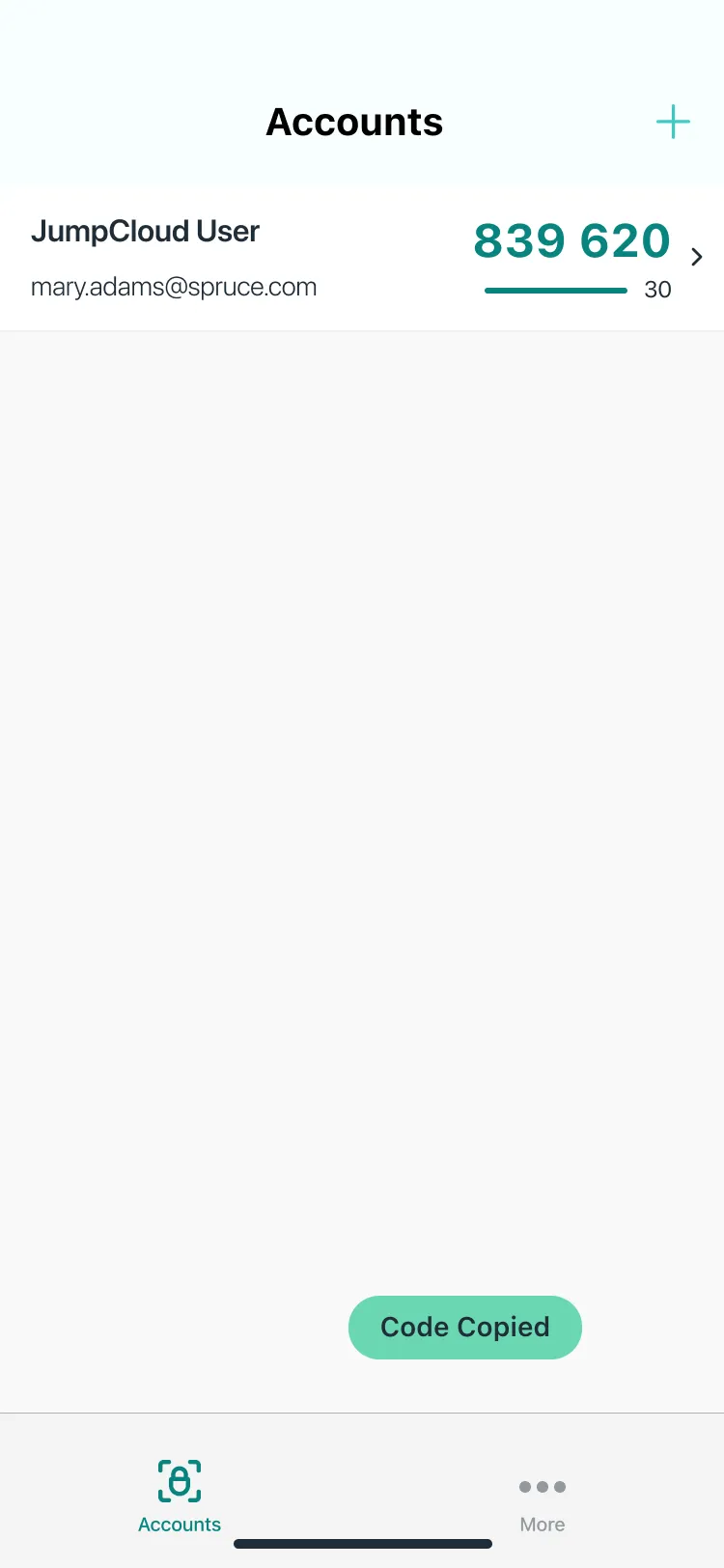
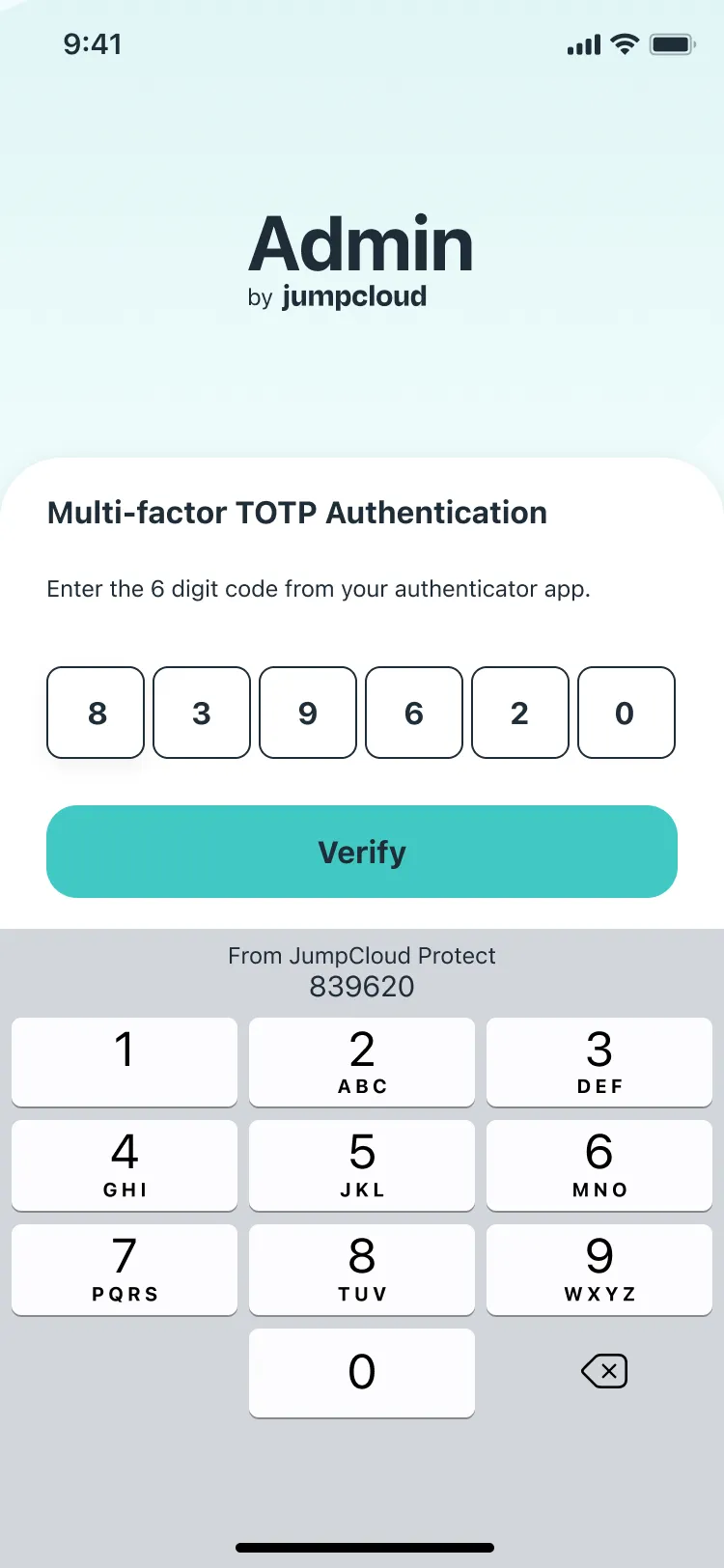
Admins with MFA confirm with a code from JumpCloud Protect, so I designed the hop between the two apps: swipe over to Protect, tap the code to copy it, and swipe back. The keyboard offers to paste it, and the app verifies on its own the moment the last digit lands.
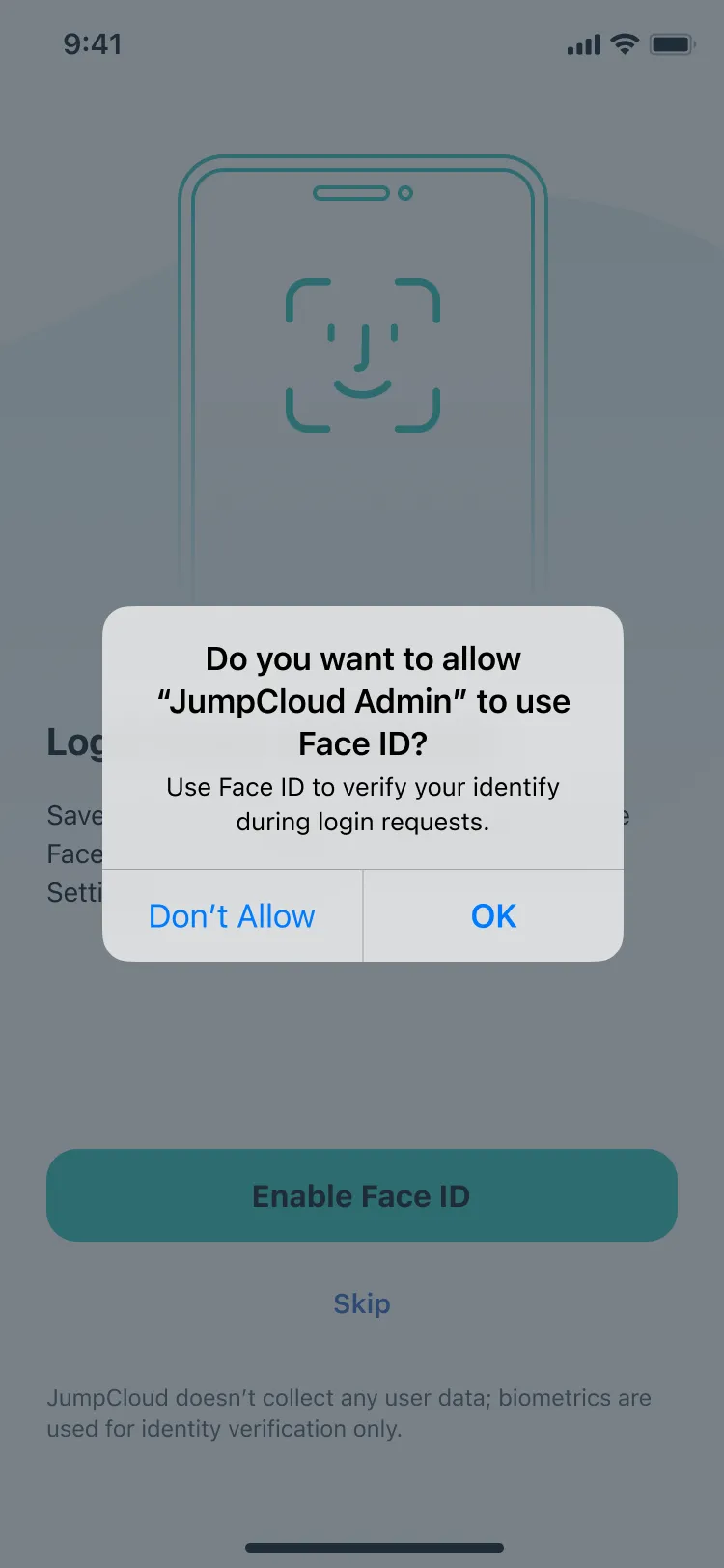
Admins without MFA can turn on Face ID or Touch ID (or face unlock and fingerprint on Android) the first time they log in. After that, the app checks as soon as it opens, using each platform’s own prompts instead of custom lookalikes.
A home screen built around what’s on fire
For the MVP, Home came down to one question: does anyone need my help right now? The chart and the extra counts went, leaving total users and two counts, accounts locked out and expired passwords. Tap either one and you land in the user list, already filtered to just those people.
When someone gets locked out, a push notification brings you to the same place. The app’s names for things, like the “User Locked Out” alert, were lined up with the desktop portal, so admins never had to translate between the two.
Finding the right person fast
The search box takes a first name, a last name or an email, and icons show who’s locked out or has an expired password before you even open their profile. Tapping into search shows your last 10 searches, so the person you helped yesterday is one tap away today.
Unlocking someone in a few taps
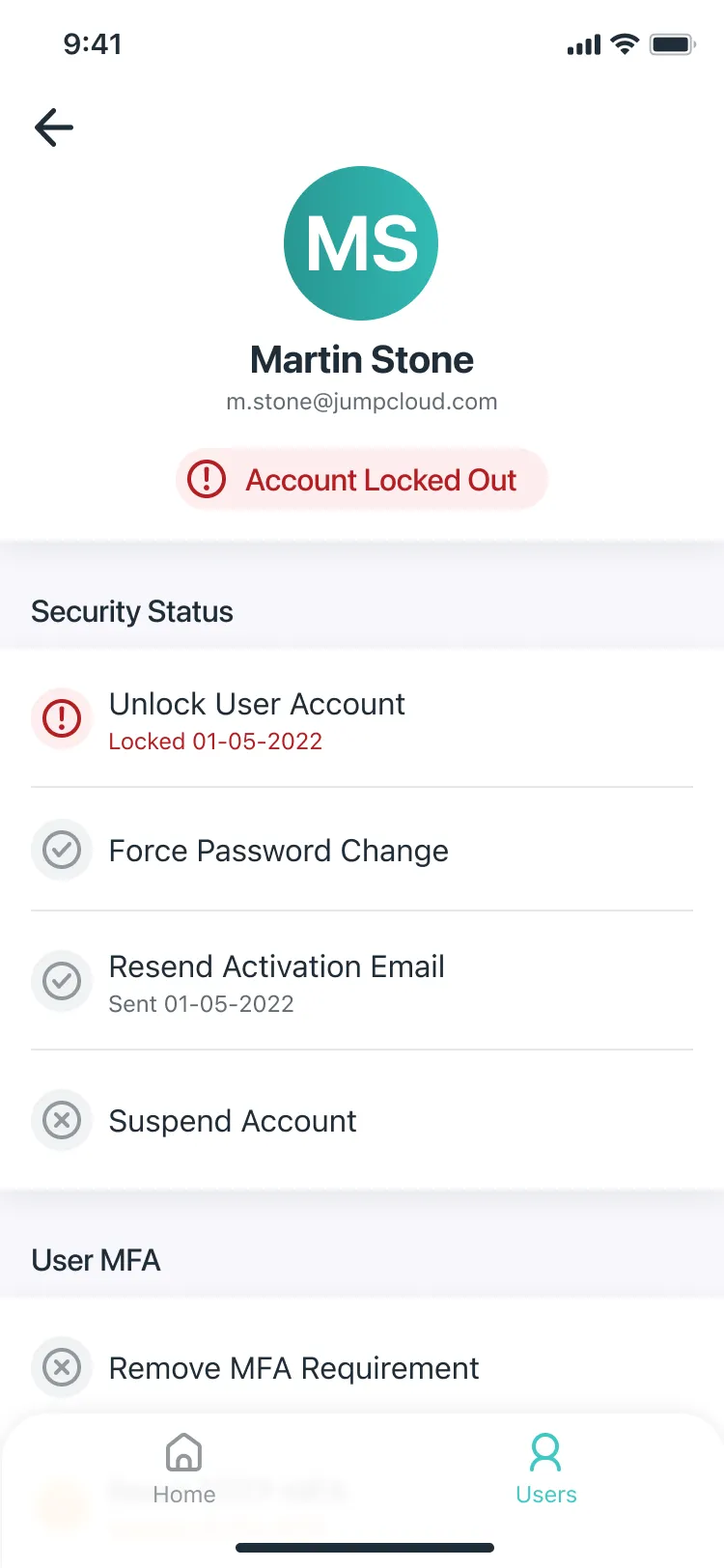
A user’s profile puts their security status first: unlock their account, force a password change, resend their activation email, suspend them, or reset their MFA. Each action shows what happened last and when.
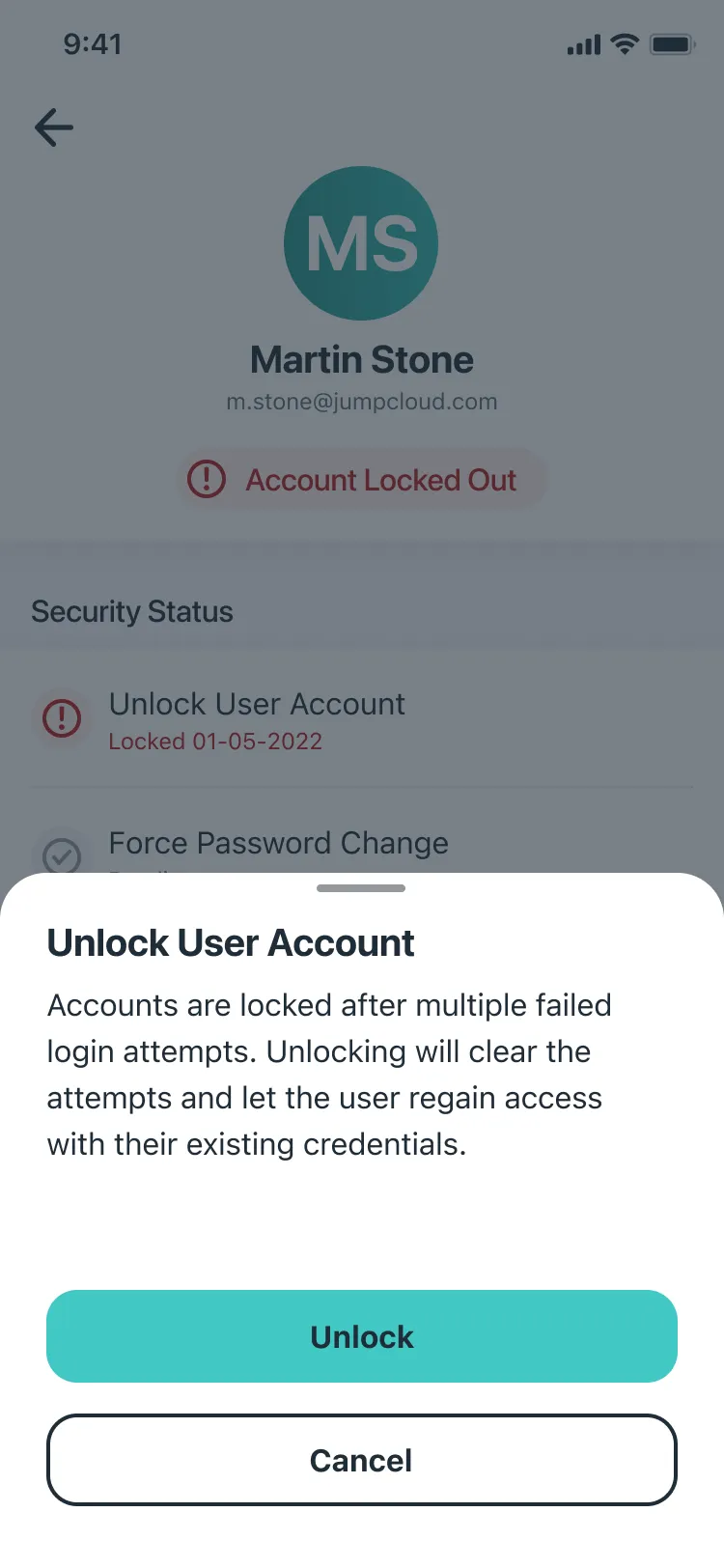
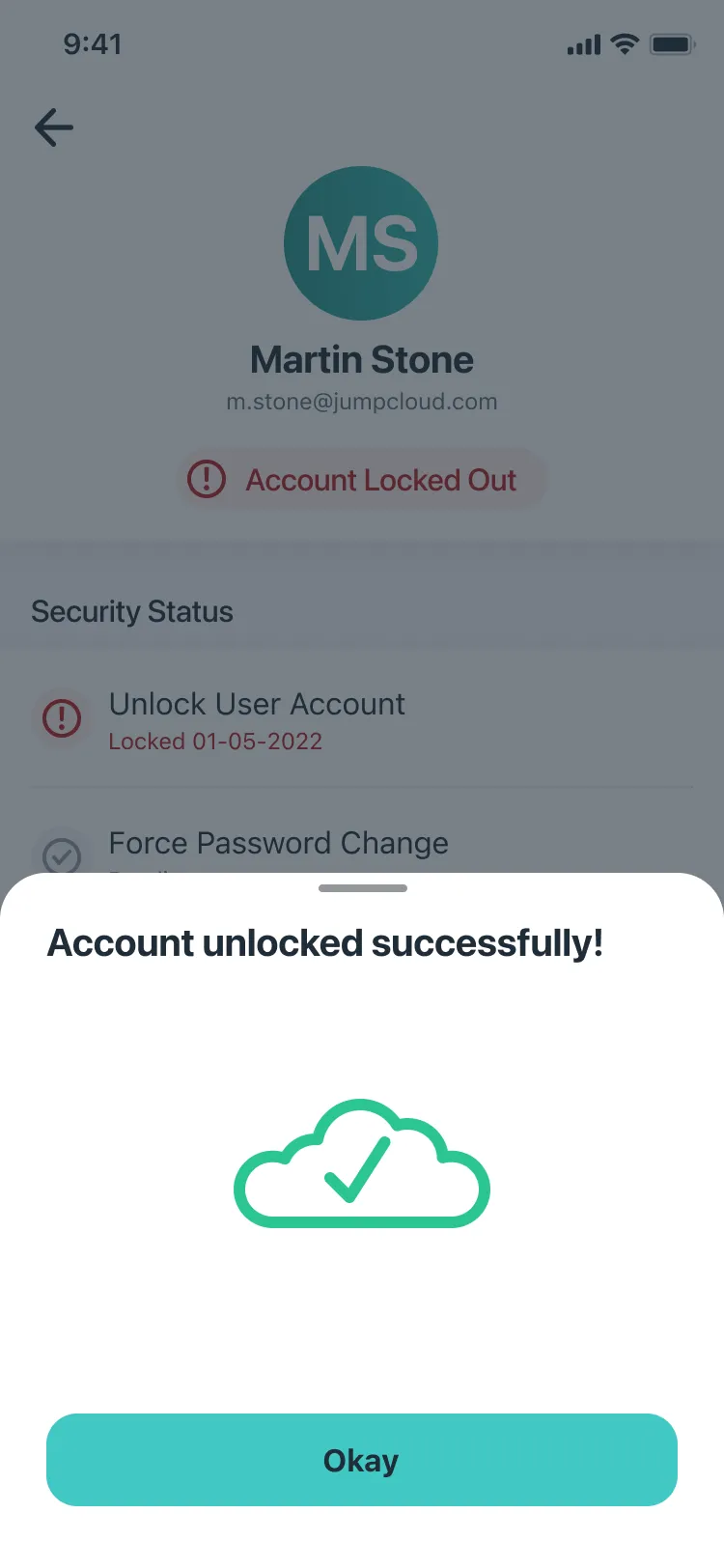
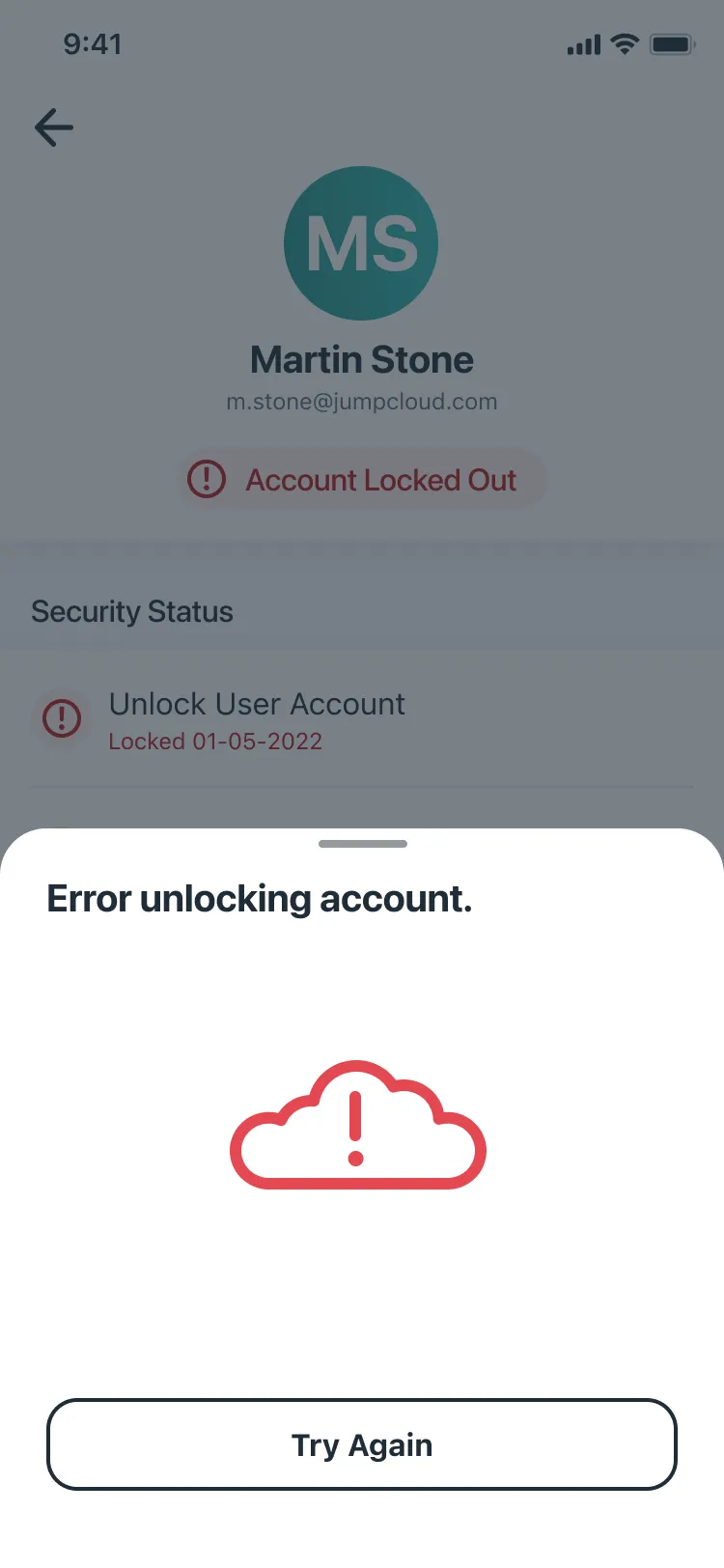
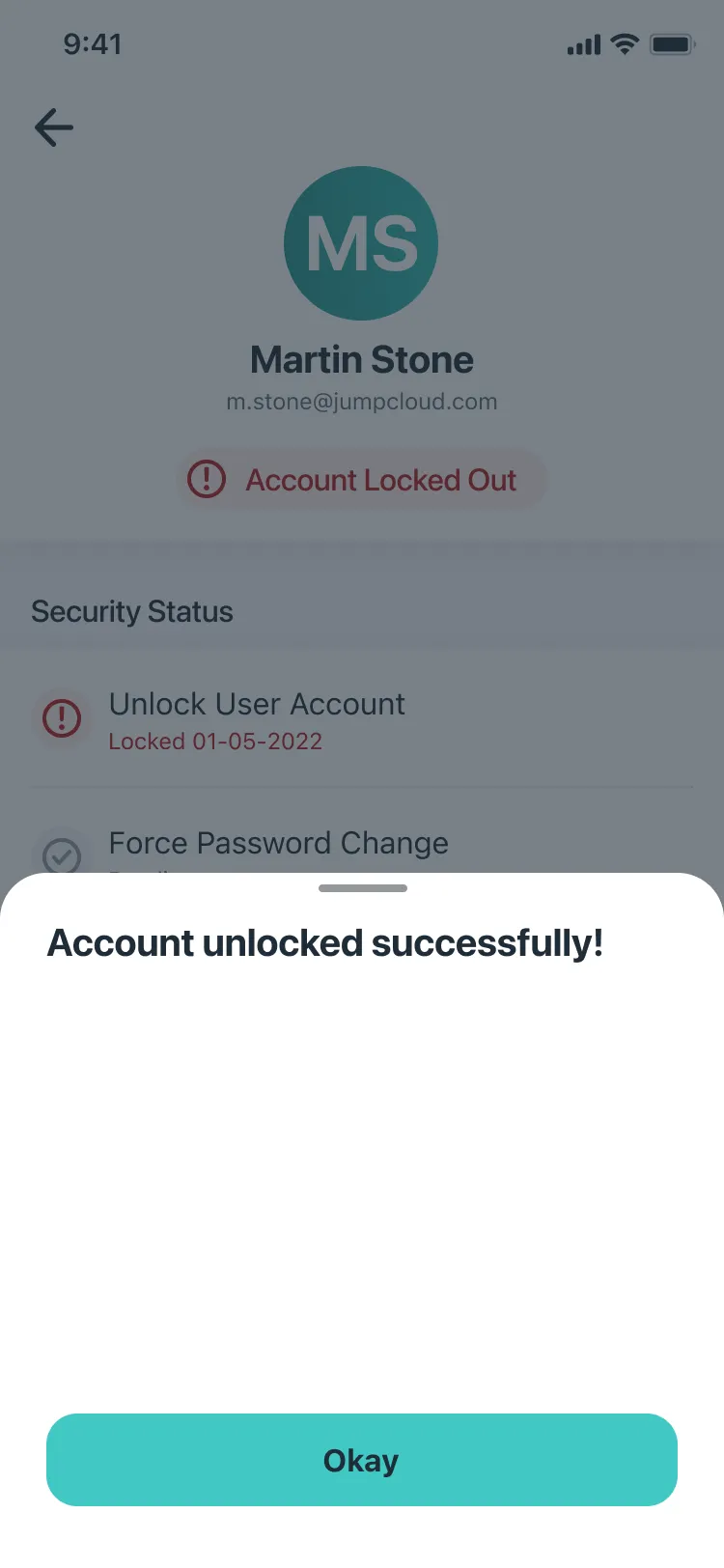
Tap Unlock and a sheet explains what unlocking does before you commit. Then the app tells you whether it worked, and an error gets a clear Try Again instead of a dead end.
A short feature list left room for some fun
With an MVP this lean, I wanted the small moments to carry some personality. I come from motion graphics, so I animated JumpCloud’s cloud in After Effects and exported it with Lottie, so the app could play the real animation instead of an approximation.
The loading cloud draws itself on the startup screen and anywhere else the app is waiting on data. When an action works, like unlocking a user, the cloud draws in green and a checkmark lands.
They didn’t stay in the app for long. The animations were adopted across JumpCloud, from other internal apps all the way to the marketing website.
Admins who look after more than one company
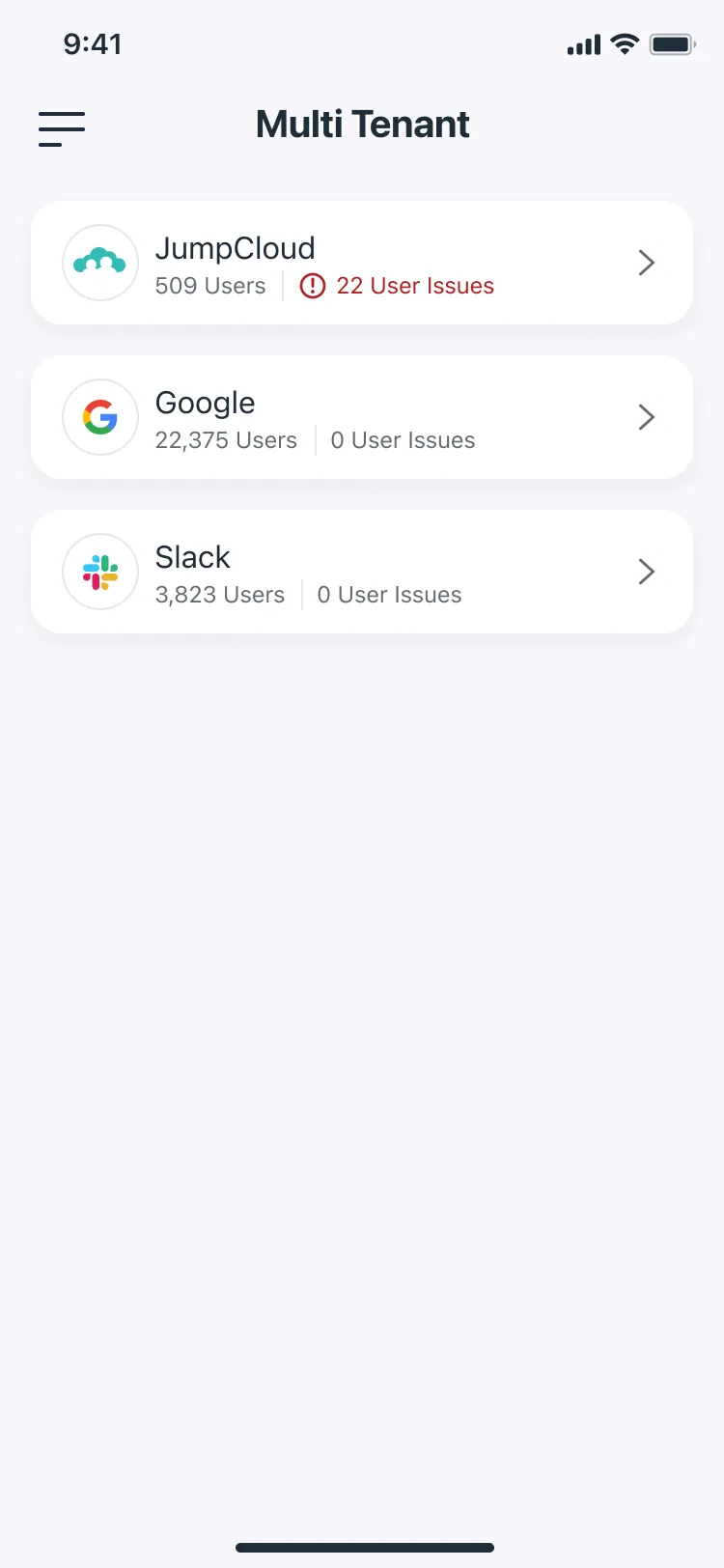
Some admins manage several organizations through JumpCloud’s multi-tenant portal. They log in to a list of their organizations, each showing its number of users and user issues, so the one that needs attention stands out.
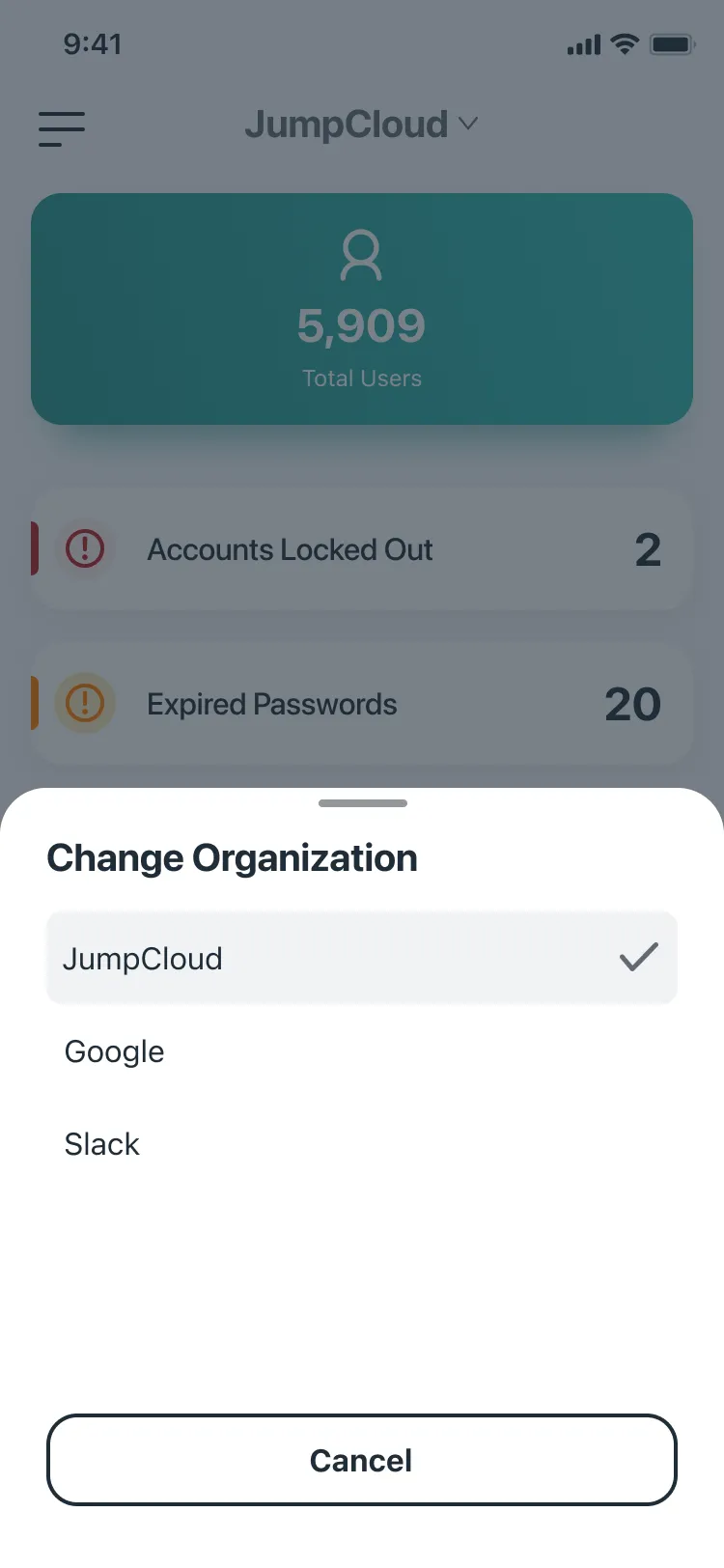
Once they’re inside an organization, they can switch to another from the header, without going all the way back to the list.
No acting on stale data
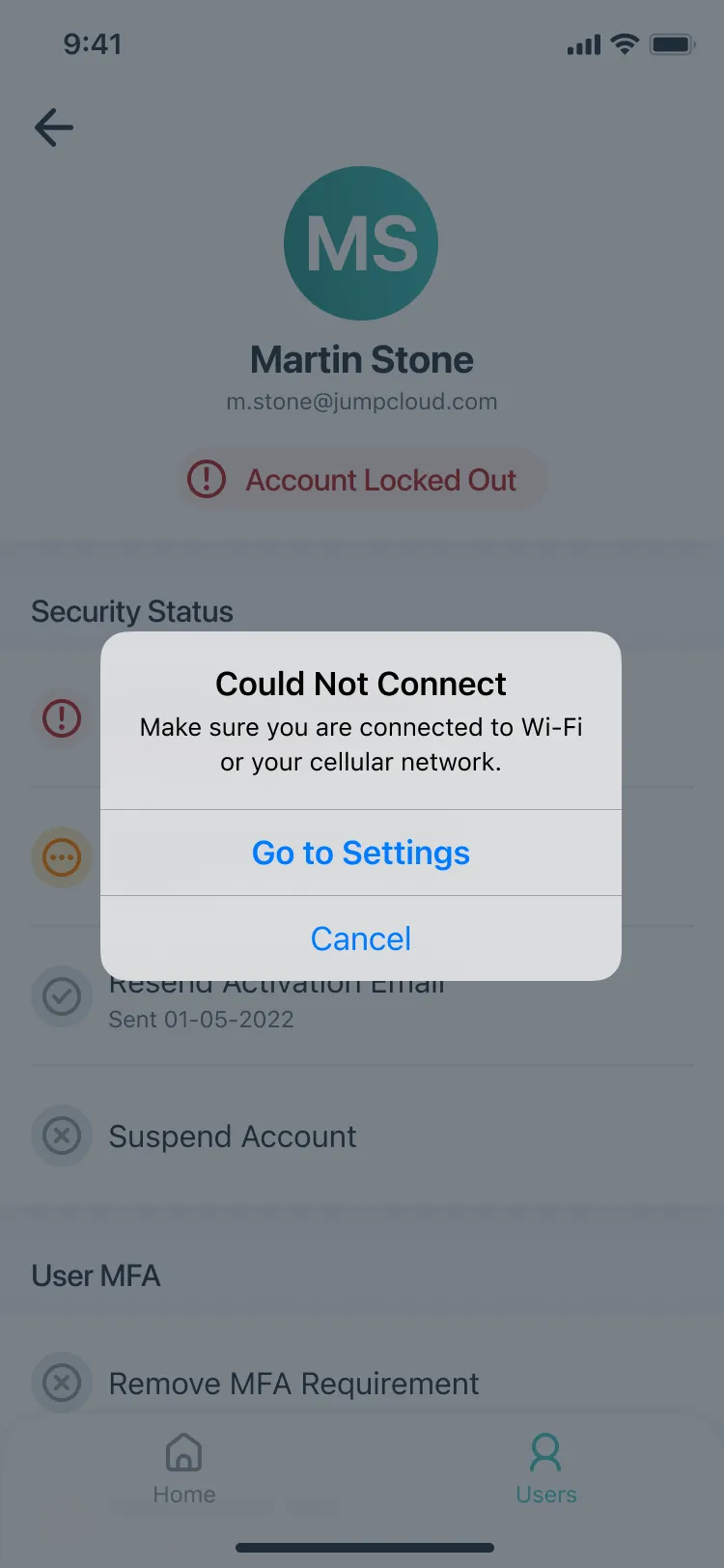
When you’re unlocking accounts and resetting MFA, out-of-date information is worse than none. If the app loses its connection, it says so and offers a shortcut to Settings. If the admin cancels, a blocking screen keeps them from acting on data the app can’t refresh.
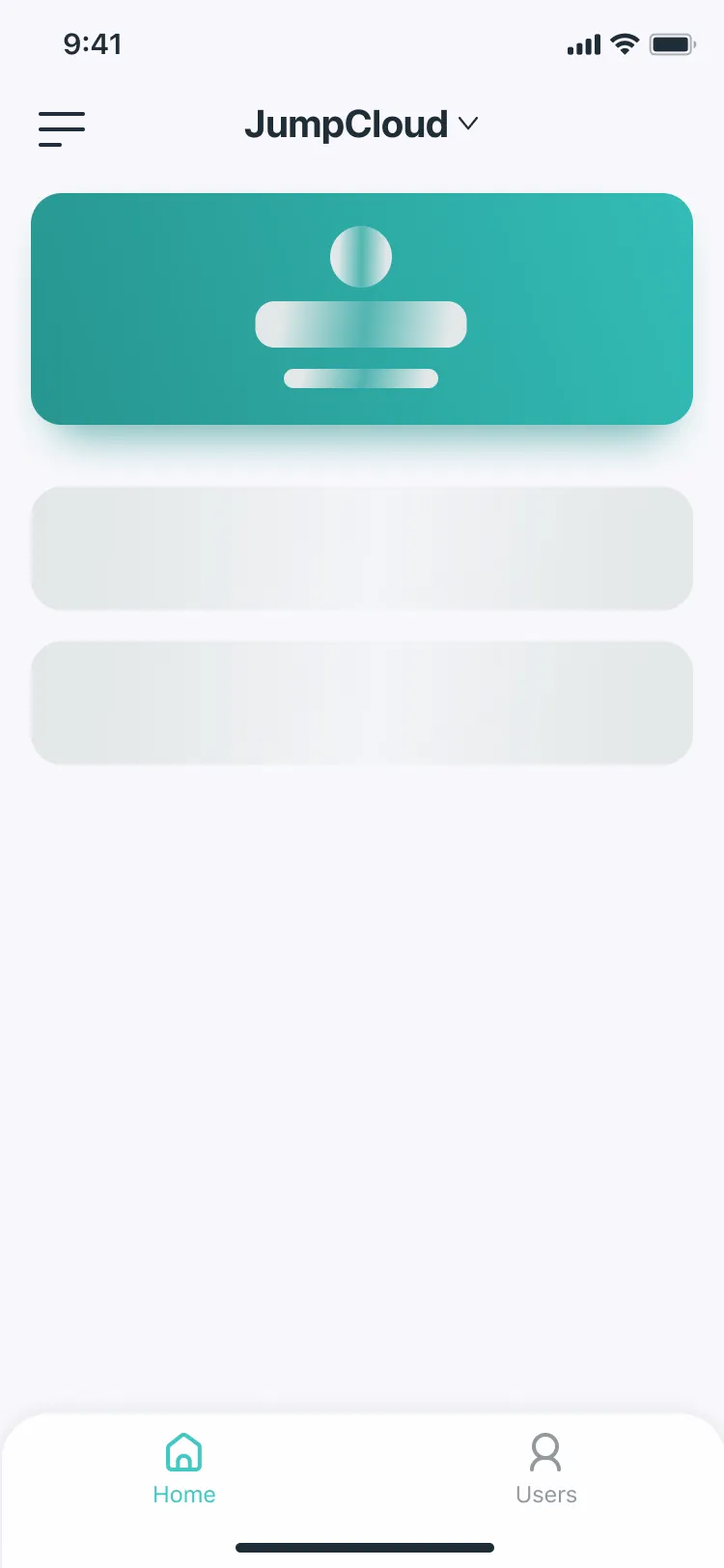
While content loads, skeleton screens hold its shape, so nothing jumps around when the real numbers arrive.
Checking every build against the designs
Handing off the designs wasn’t the end of it. Leading up to release, I ran UX QA on the actual dev builds, checking each one side by side with the Figma files. I flagged everything from card shadows and footer blur to pixelated buttons, MFA icons and empty states, and included the CSS and type specs the engineers needed to fix each one.
Taking it back to the desktop
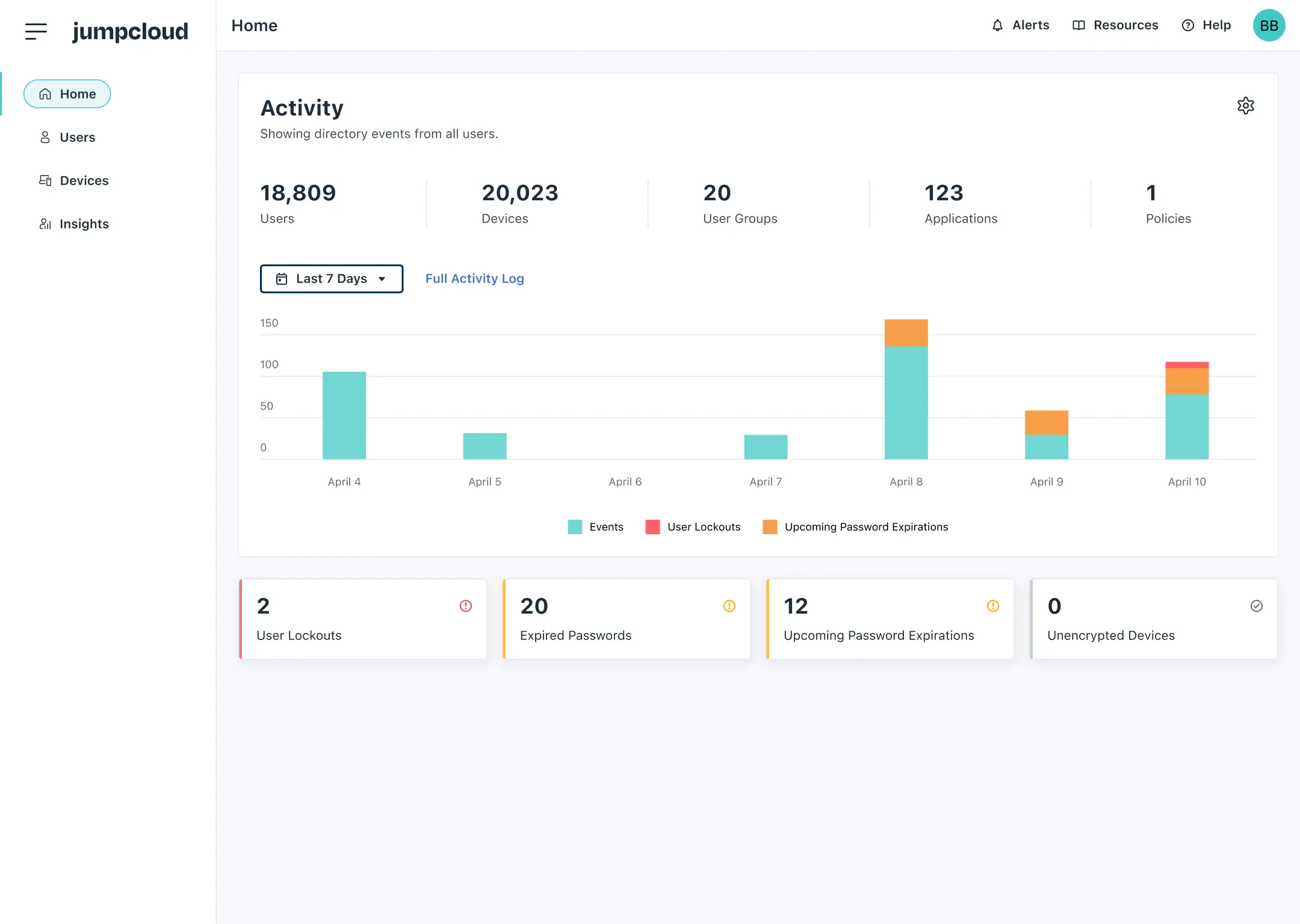
The mobile patterns turned out to be useful beyond the phone. Partway through the project, I explored how they could scale back up to the desktop as a lighter, quick-response help desk: an activity chart of the week’s directory events above the same urgent counts, and a user page that leads with what’s wrong, like a locked-out banner with its own Unlock button, followed by the same quick actions as the app. It was a much smaller tool than the full Admin Portal, built for getting in, fixing something and getting out.
Looking back: It shipped. Now people want more.
JumpCloud Admin shipped on the App Store and Google Play, dark mode included, and it’s still live today. It was the company’s first native app, and it gave admins something they’d been asking for: a way to help people without being at their desks. I don’t have adoption numbers to share.
The biggest miss is how much it can do. Most of the complaints in the app store reviews are about missing features. That was the trade-off of a tight MVP, and it was a real struggle internally. We chose to ship a few urgent tasks done well, knowing the app would be received that way at first.
Small on purpose. Maybe a little too small.
I wish we’d been able to fit in more of the complex work, like device management. The designs were there.
But I’m proud we got JumpCloud’s first native app out the door. It filled a gap the company had been missing for a long time, and it gave the team a foundation to keep adding to.